Deploying with Jamf Pro
It's simple to deploy Alectrona Patch to your Macs using Jamf Pro. Patch Desktop allows you to both upload your Patch configuration directly to Jamf Pro as well as easily create Jamf Pro policies to install or update software.
Step 1 - Enable Jamf Pro Integration in Patch Desktop
Connect Patch Desktop directly to Jamf Pro to create policies and upload your Patch configuration profiles without manually exporting files or using the Jamf Pro web interface.
Enabling the integration is not required to deploy Alectrona Patch with Jamf Pro. You can also choose to export the configuration profile from Patch Desktop and upload it to Jamf Pro manually.
Create a Jamf Pro API Client for Patch Desktop Integration
- In Jamf Pro, navigate to Settings > API Roles and Clients
- Click the API Roles and click +New + to create a new API Role.
- Name the role (e.g. Patch Desktop Integration) and assign the following Jamf Pro API role privileges, then click Save.
- Read/Create Categories
- Read/Create/Update macOS Configuration Profiles
- Read/Create Policies
- Read/Create Scripts
- In the API Clients section, click +New + to create a new API Client and assign it the role you just created.
- Name the client (e.g. Patch Desktop Integration), assign it to the Patch Desktop Integration API Role, and click Save.
- Click Generate Client Secret then Create Secret and record both the client ID and generated secret for use in Patch Desktop.
Step 2 - Connect Patch Desktop to Jamf Pro
- Open Settings
- Add Jamf Pro Server
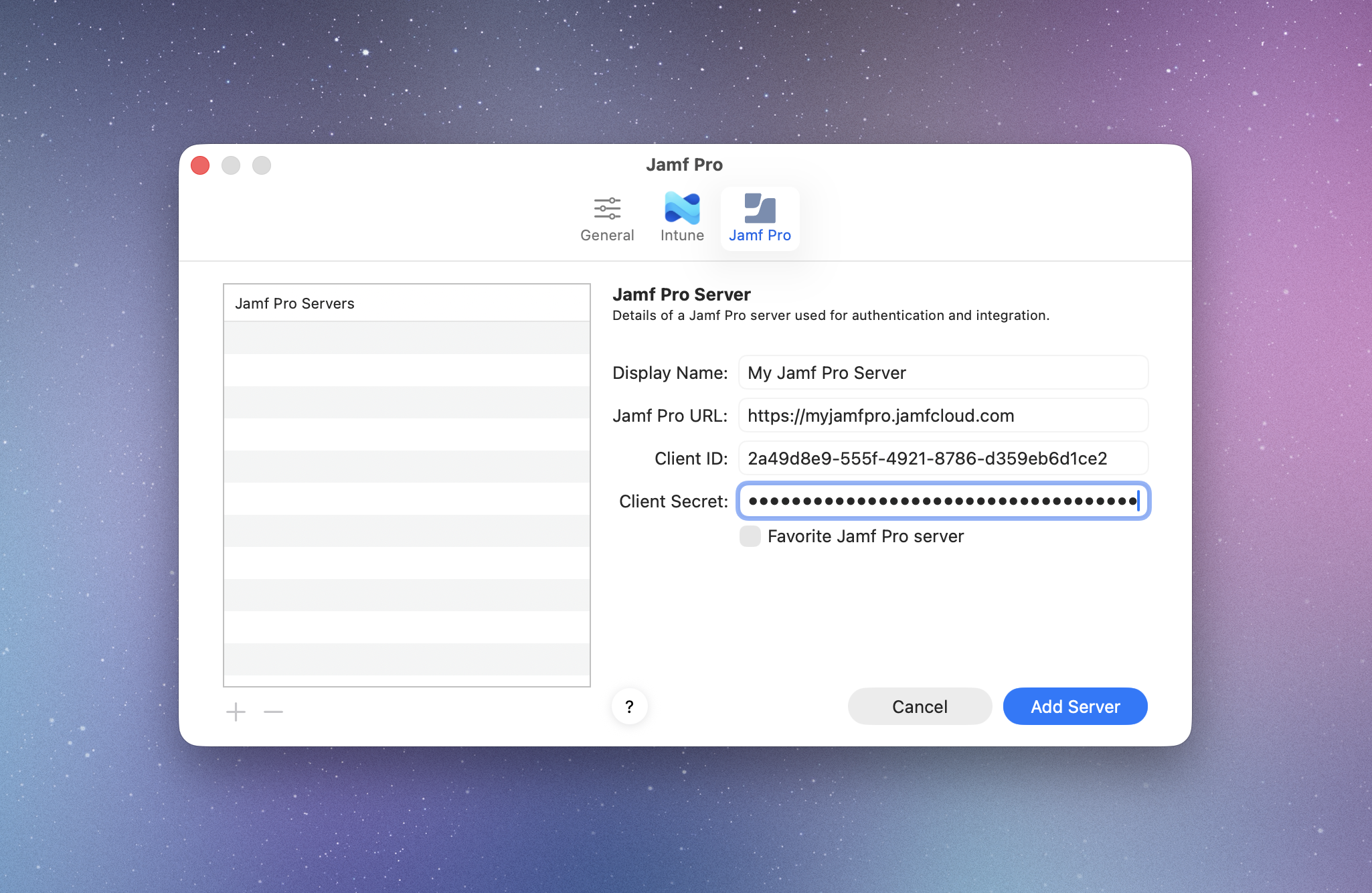
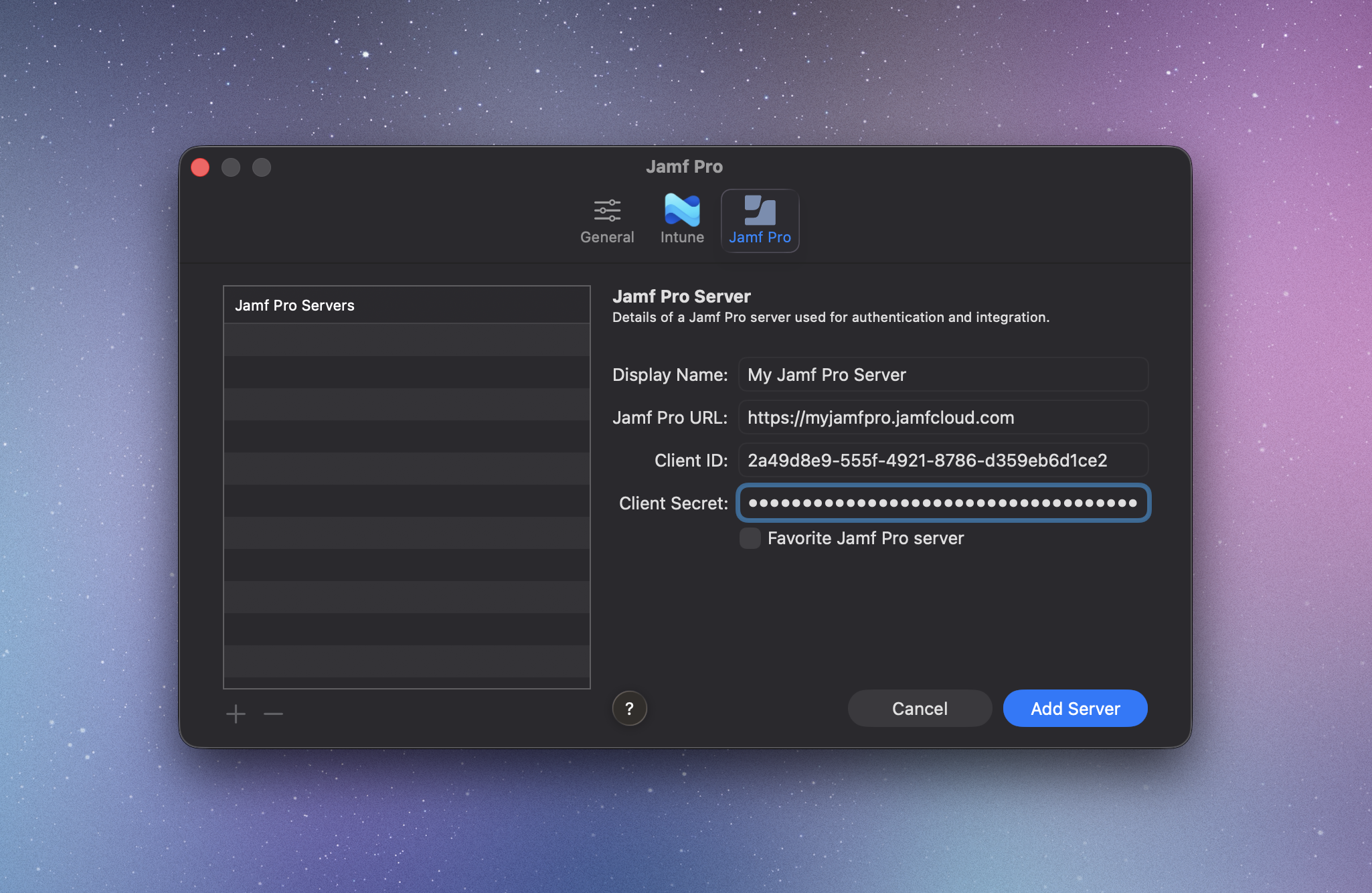
- Enter Server Details
- Integration Ready
In Patch Desktop, open Settings from the sidebar.
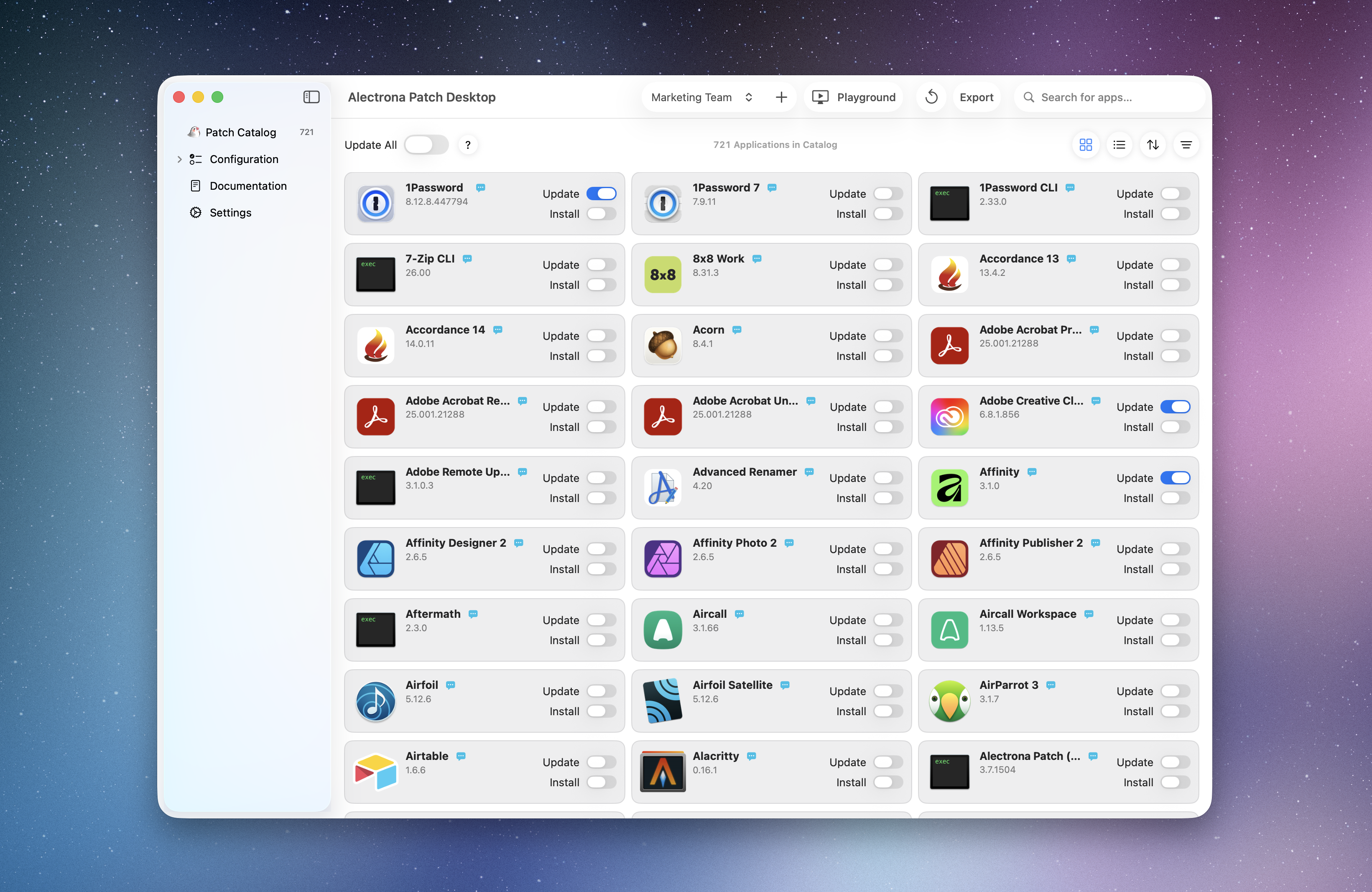
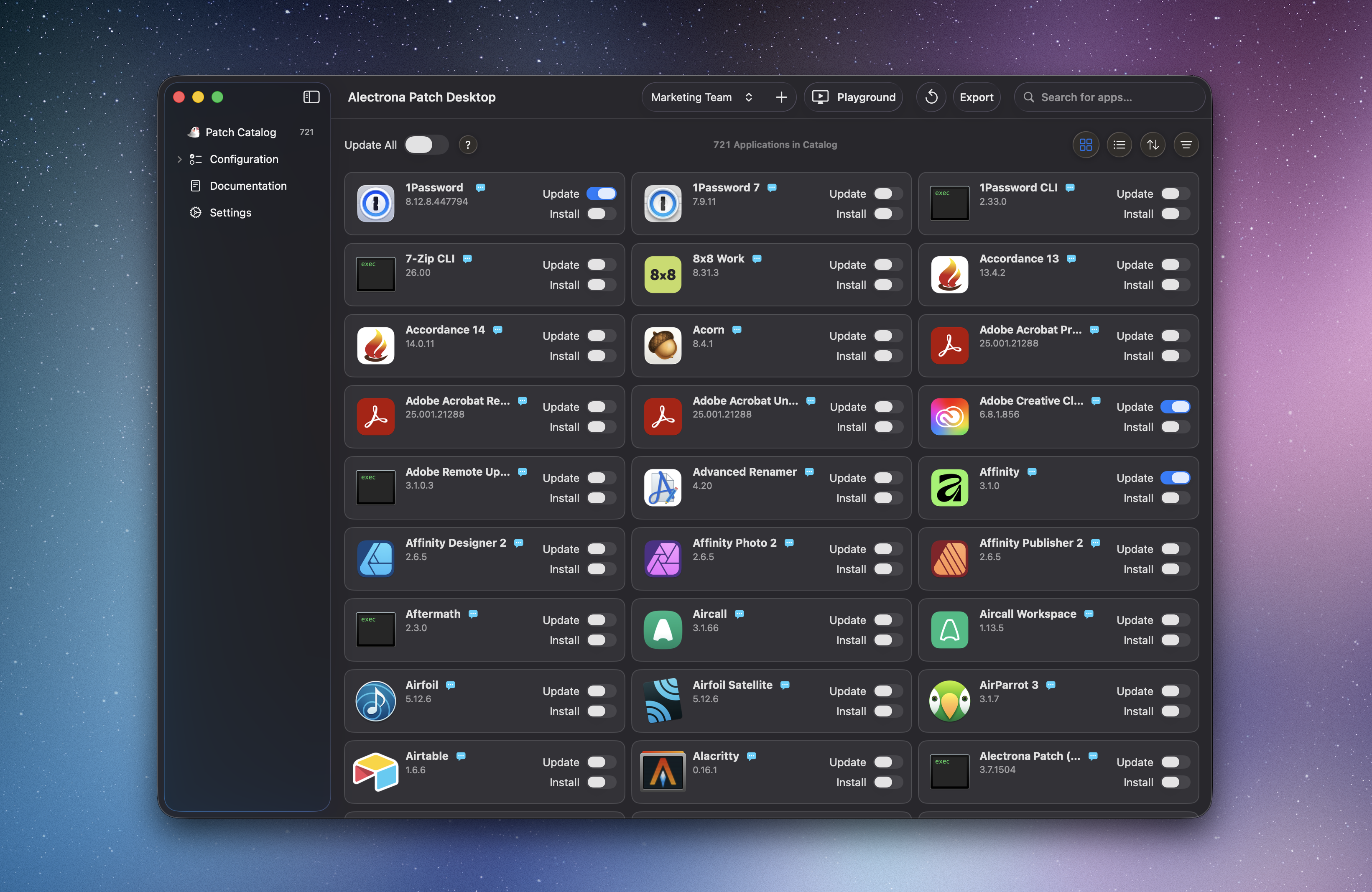
Next, select Jamf Pro and click + to add a server.
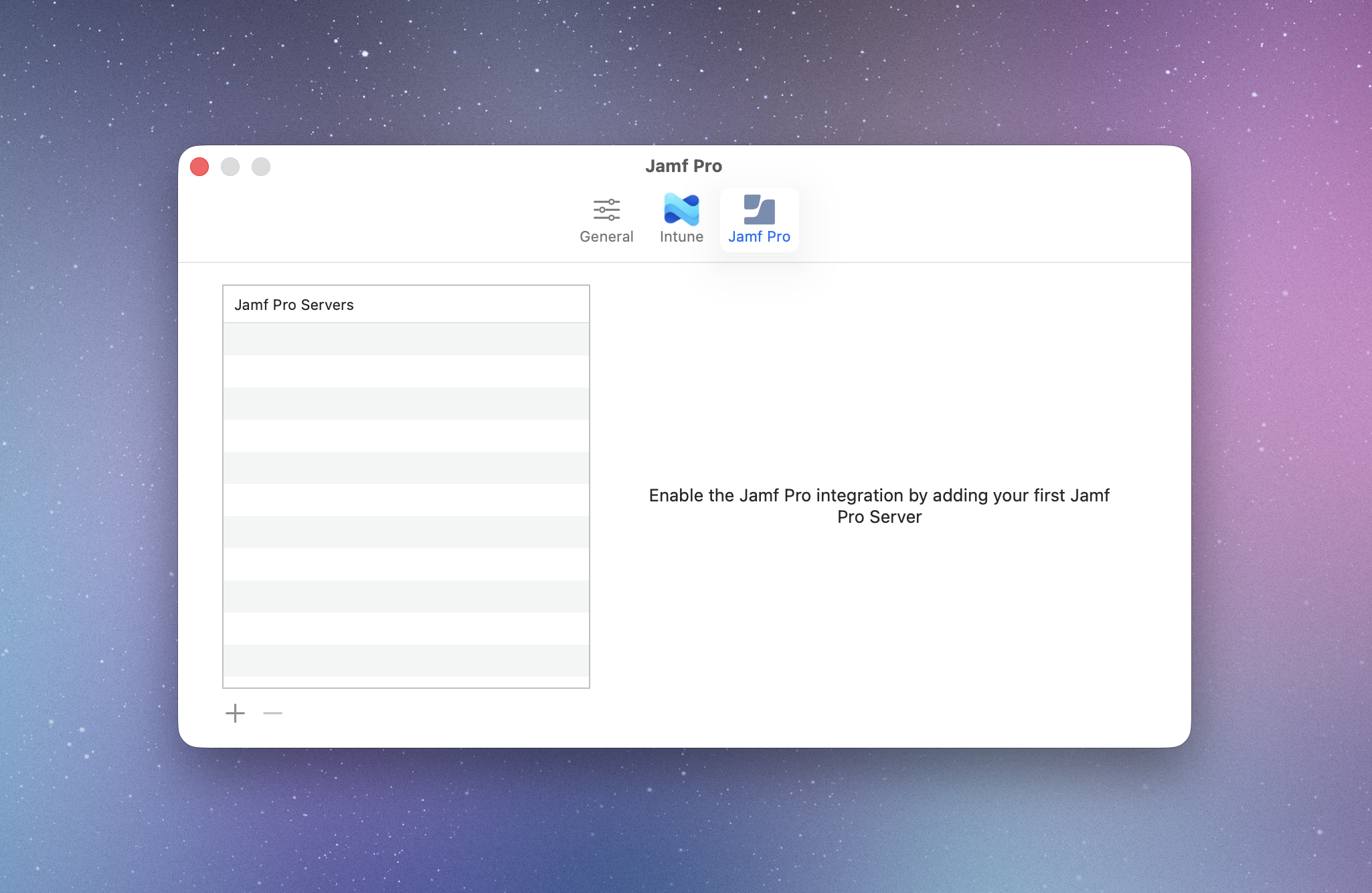
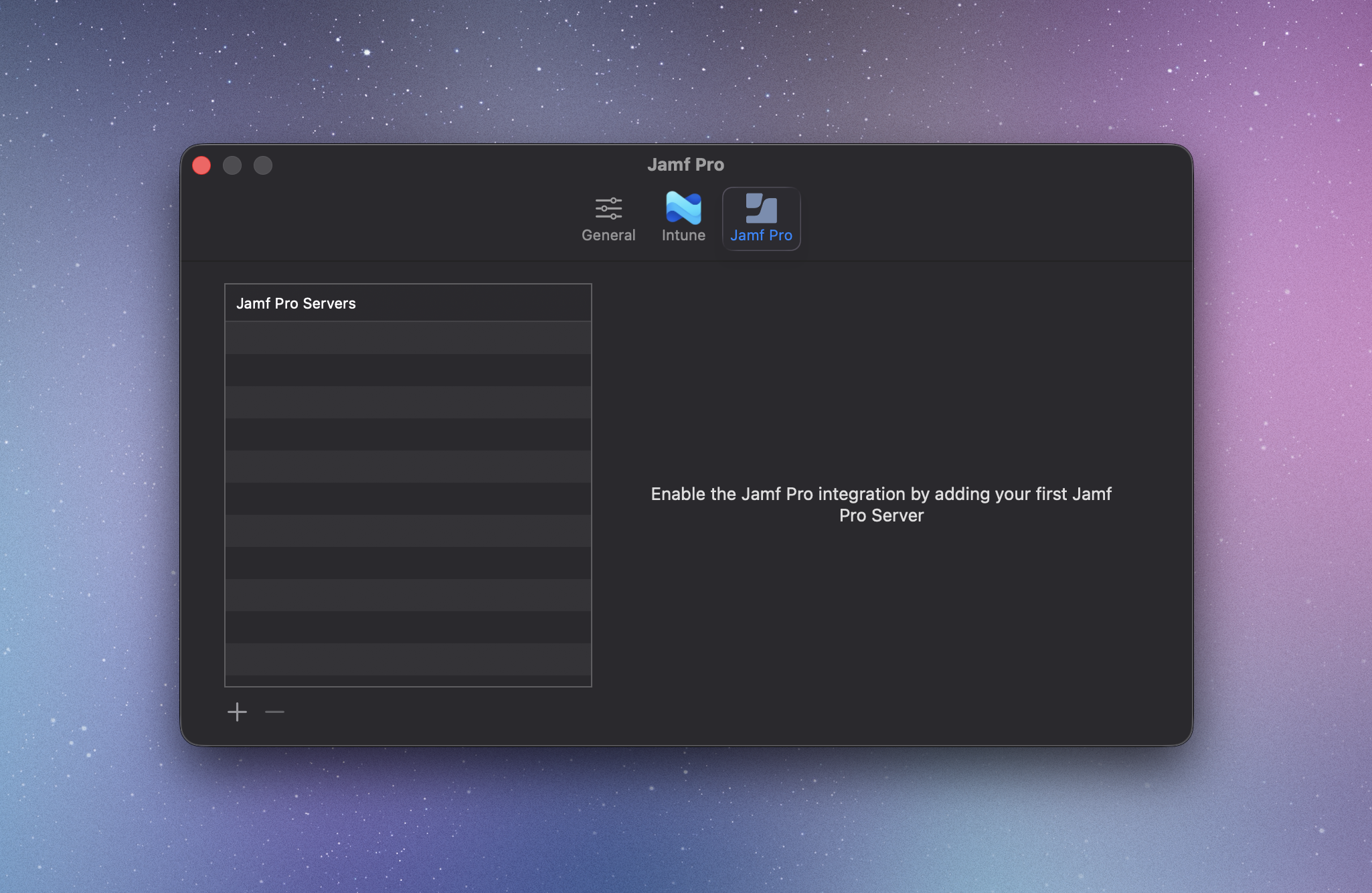
Enter your Jamf Pro server details along with the API Client credentials you configured and click Add Server.
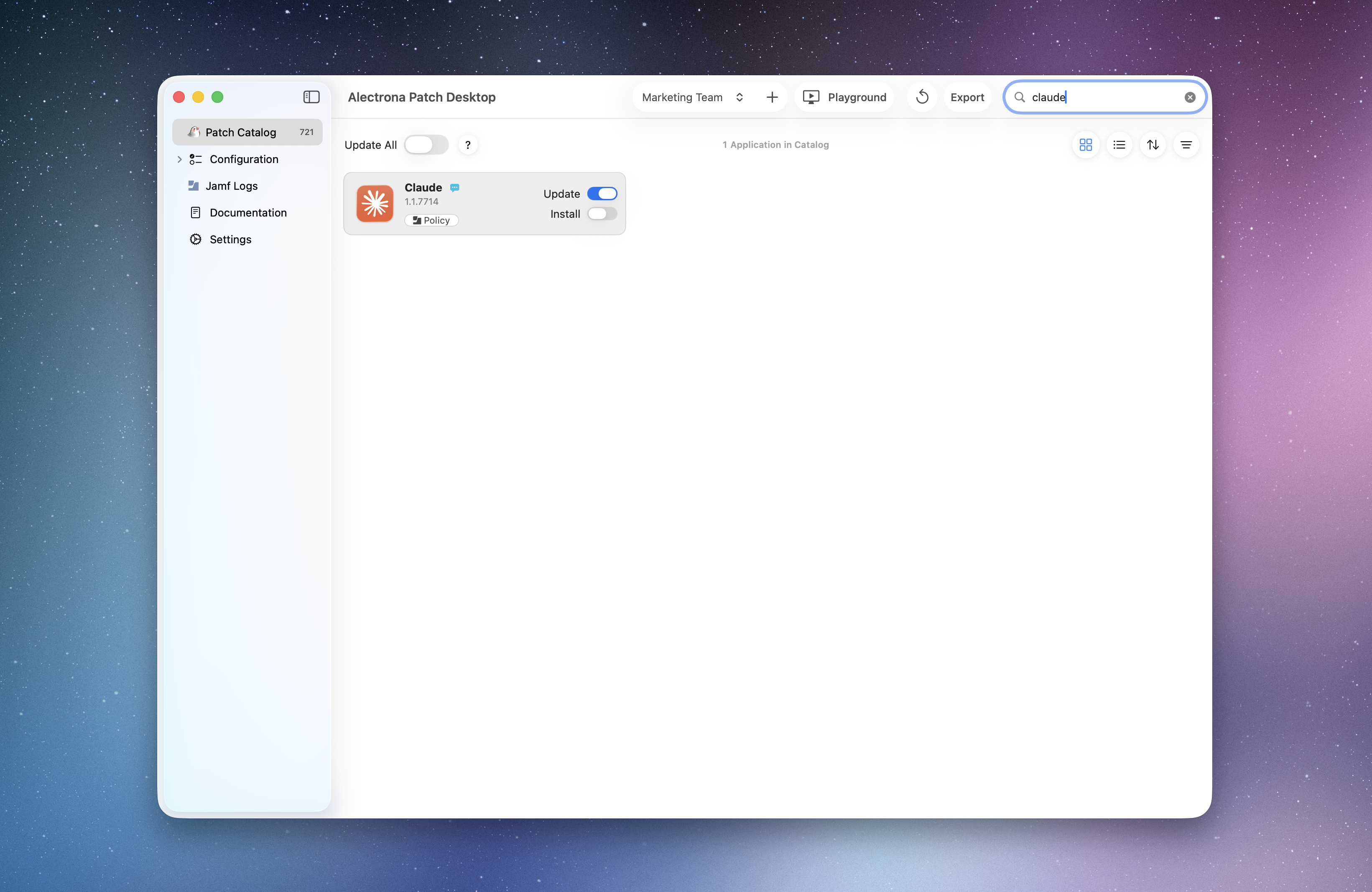
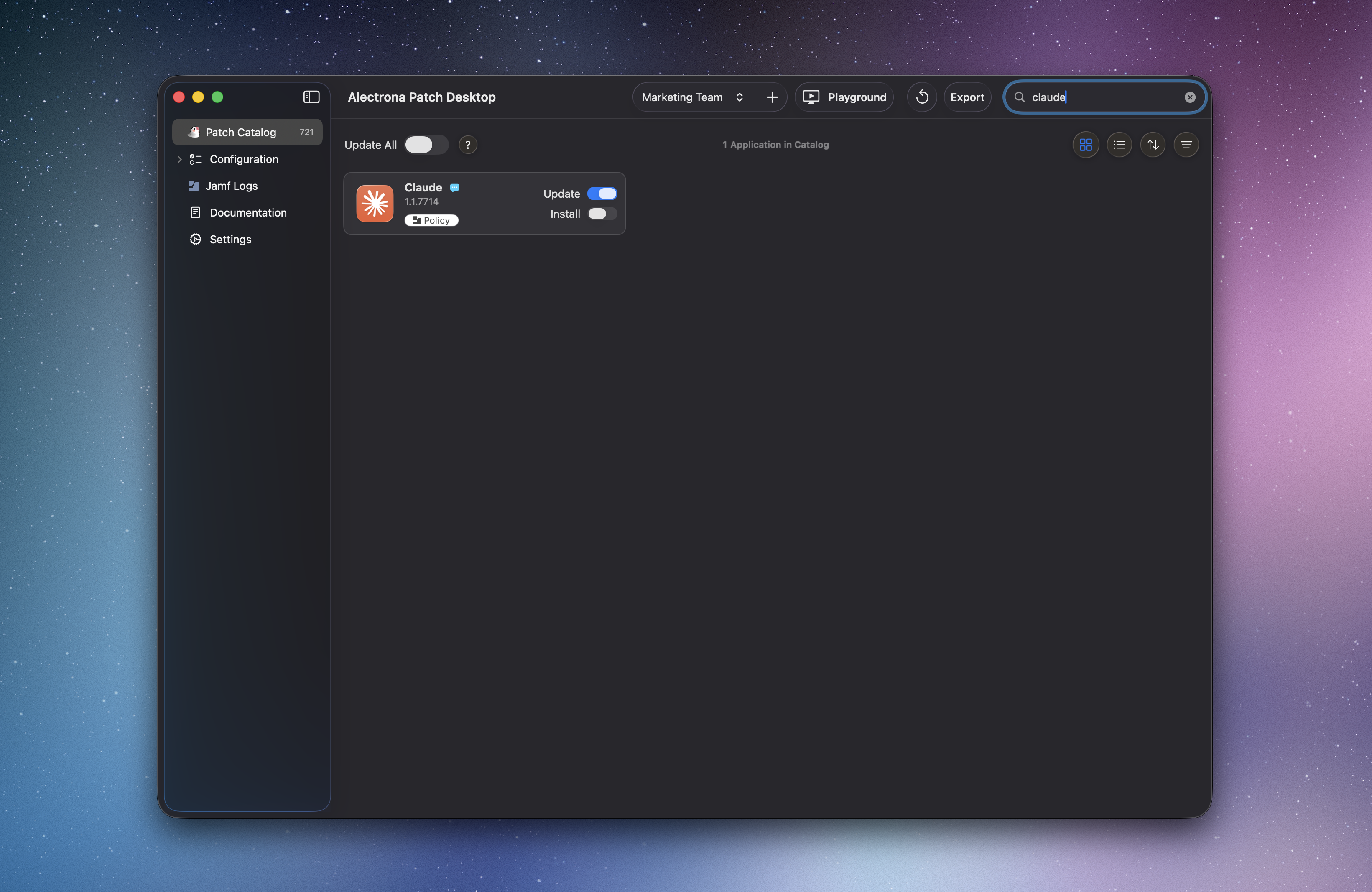
Jamf Pro integration is now active, with new Policy buttons under software titles and profile upload functionality.
Step 3 - Create Your Patch Profile in Patch Desktop
Use Patch Desktop to build your Alectrona Patch configuration, including selecting apps to keep up to date or install, and customizing the end-user experience with branding and notifications—all in one place.
Configure Your License and Initial Settings
- Enter License
- General Settings
- Notification Settings
- Deferral Limit Settings
- Preview Your Configuration
In Patch Desktop, navigate to Configuration > General and enter your Patch License. Click Validate to confirm the license is valid and active. This will unlock the full functionality of Patch Desktop.
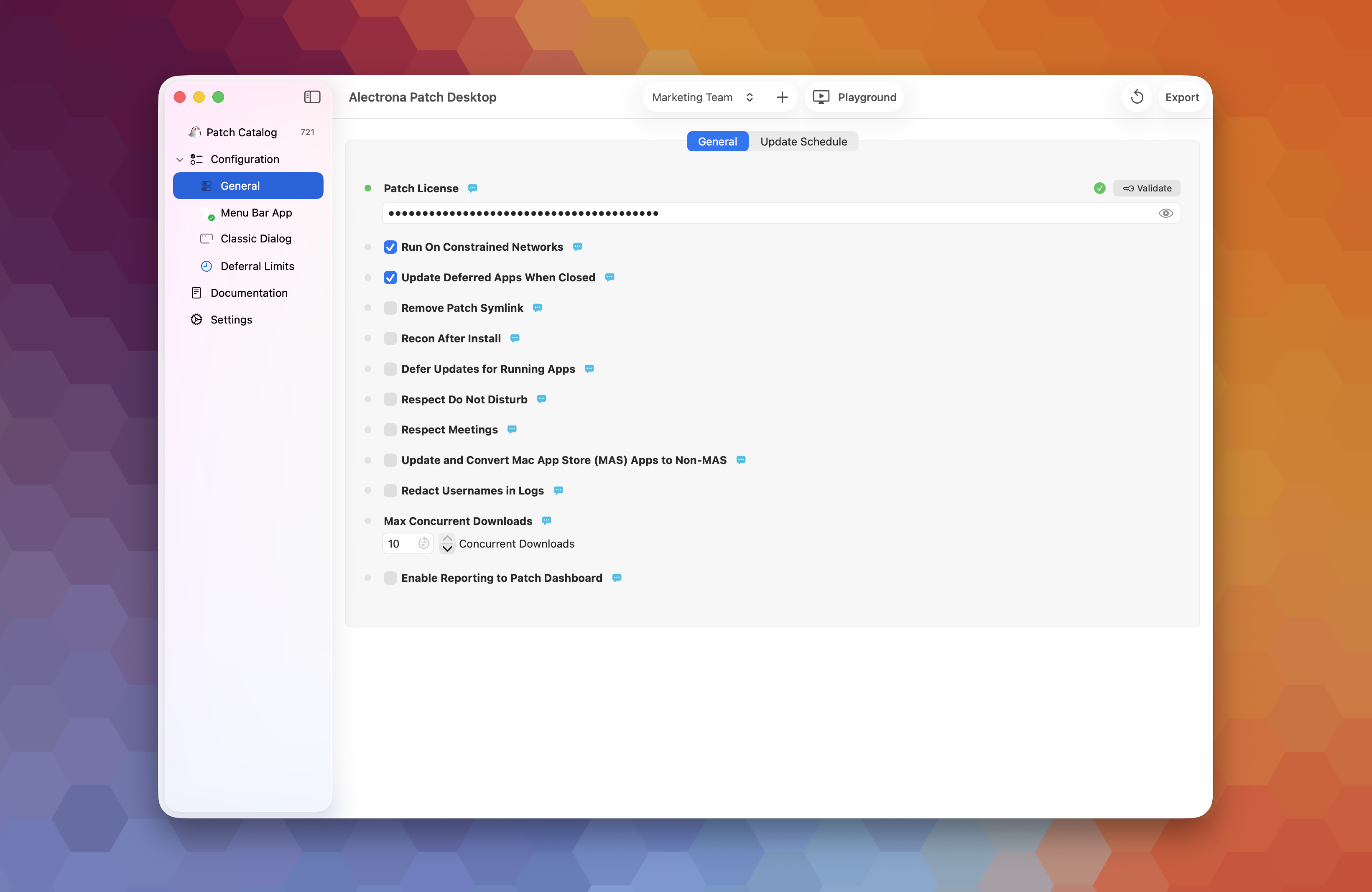
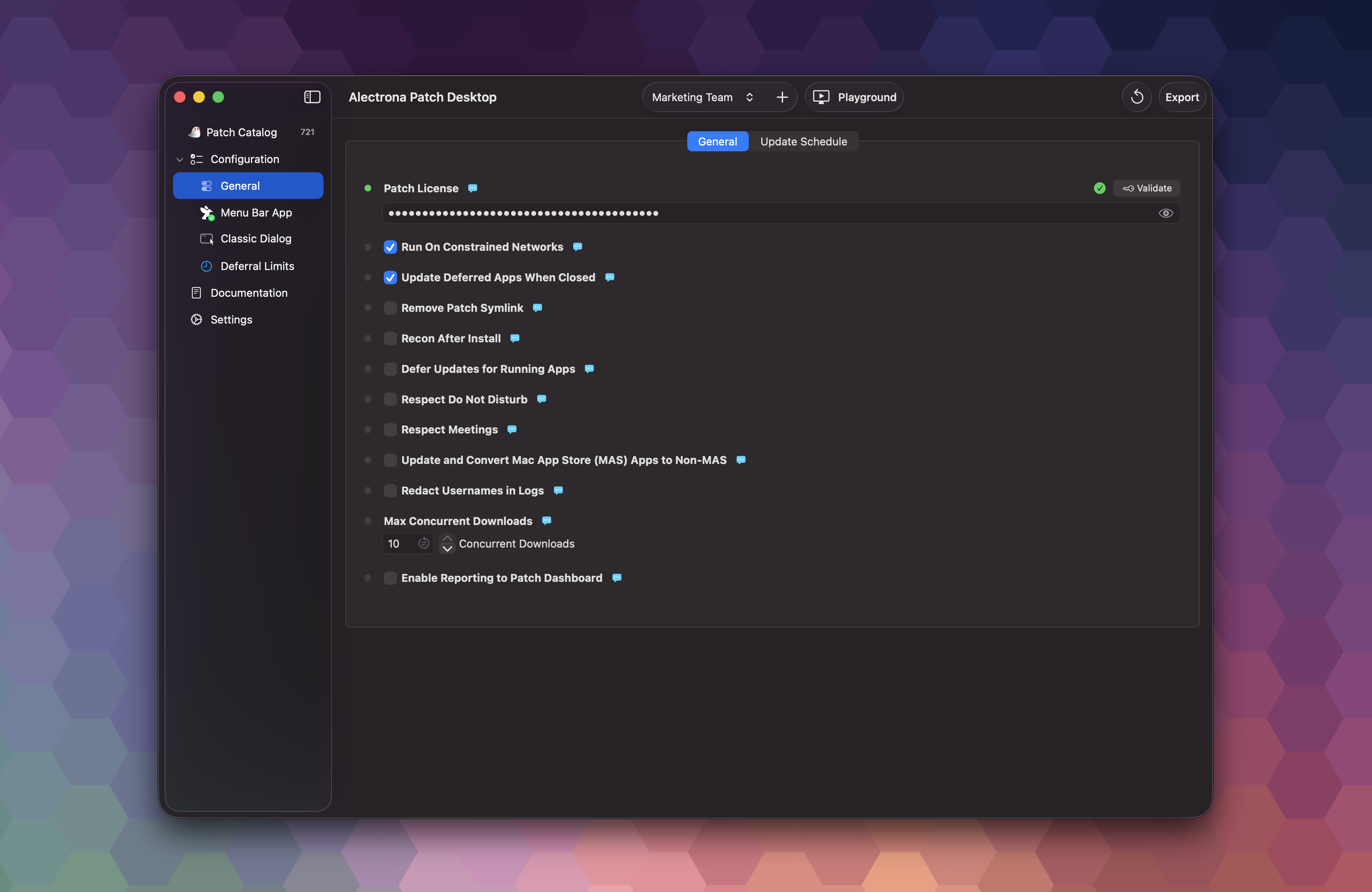
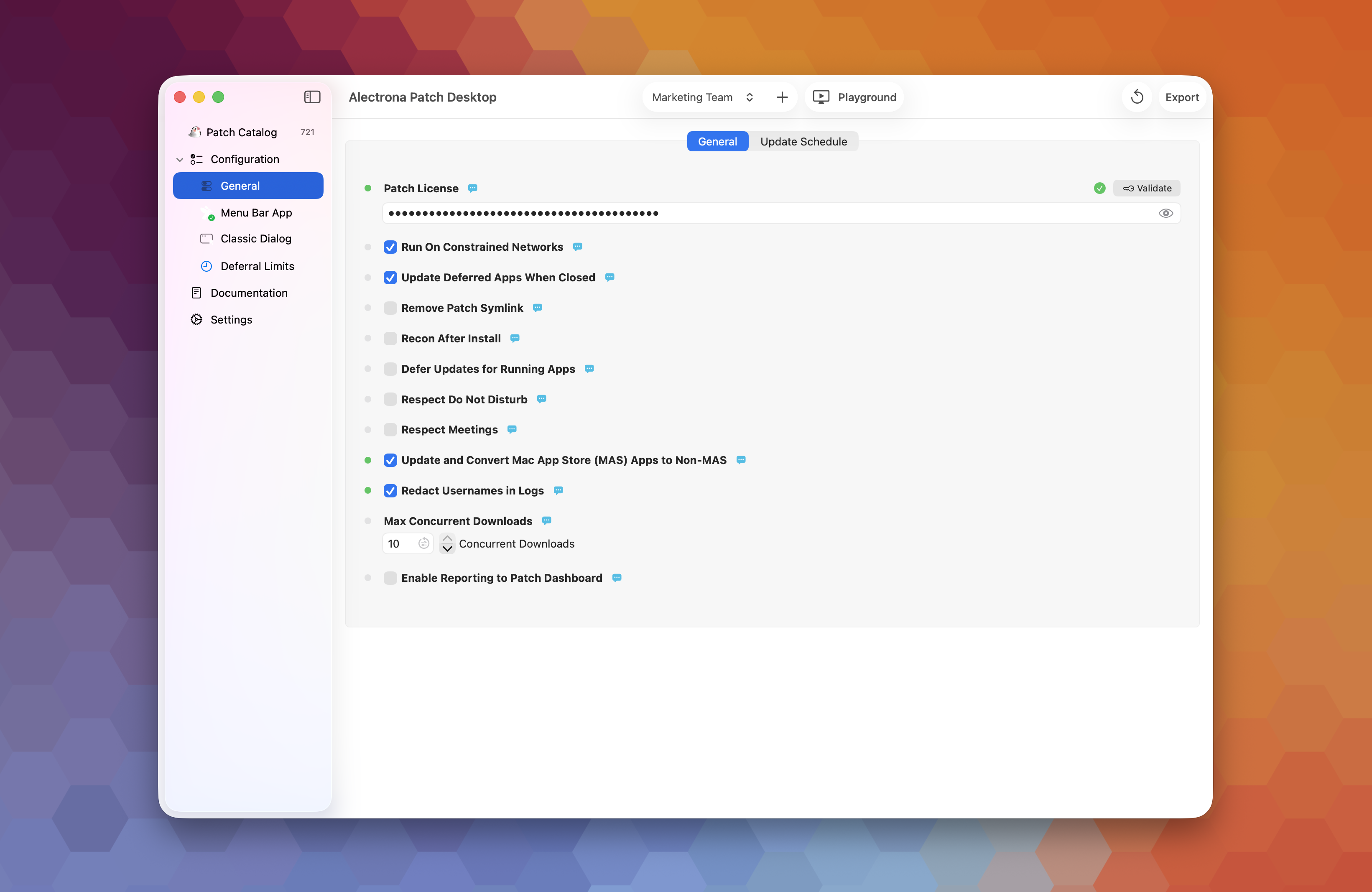
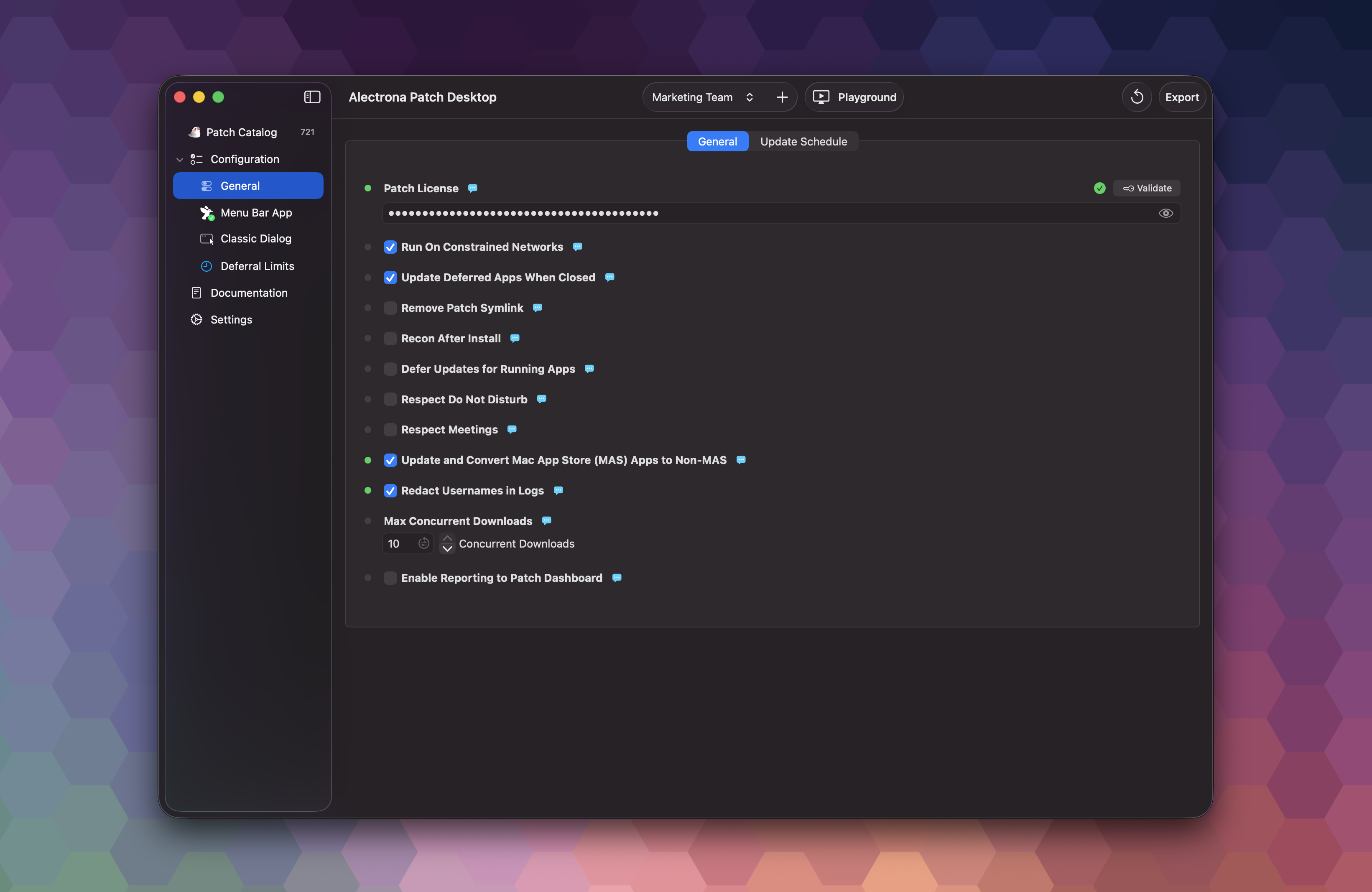
Next, review and adjust any additional General options as desired. Additionally, adding update allow/blackout windows can be helpful to avoid patching during business hours or other critical times.
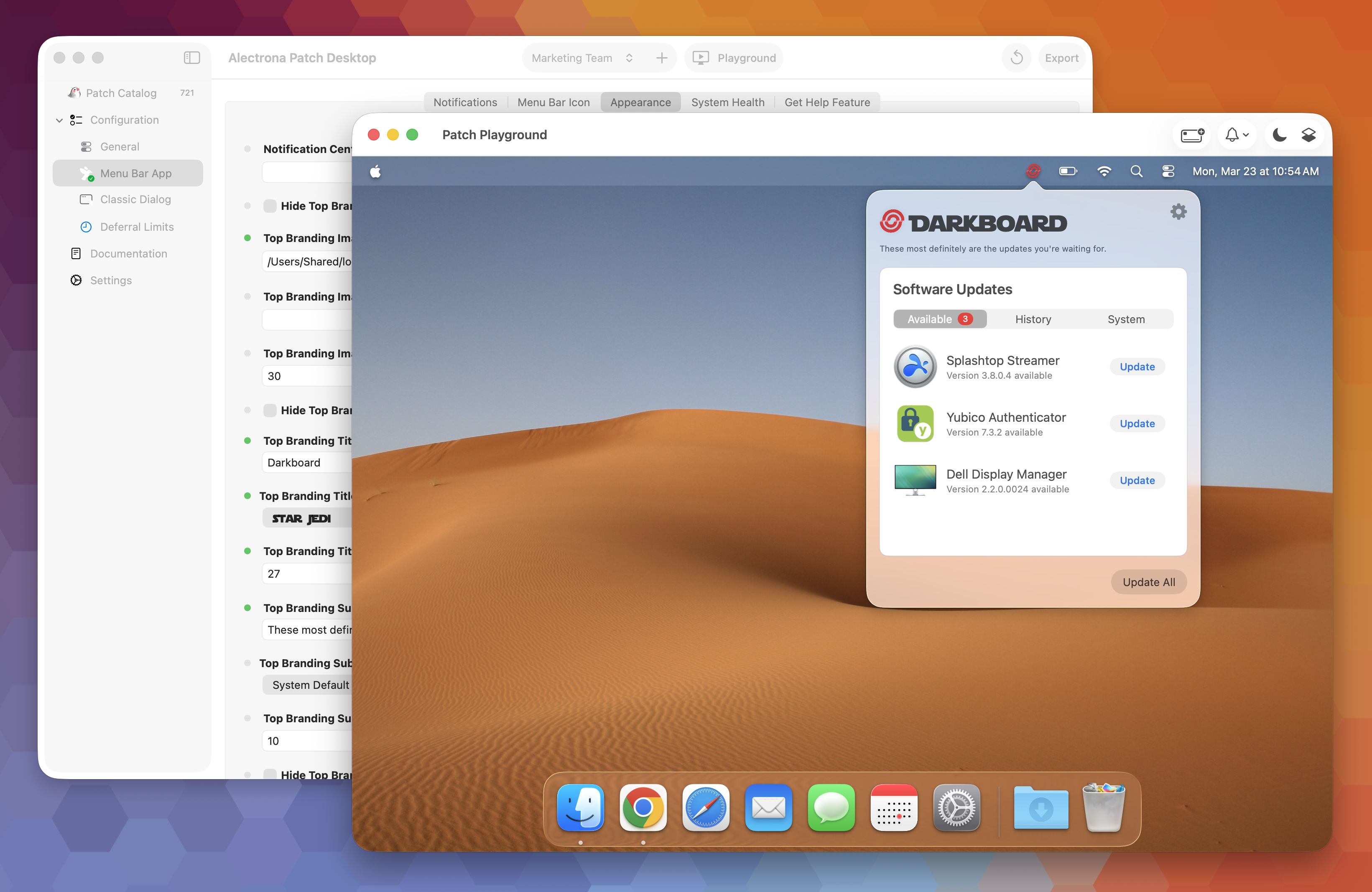
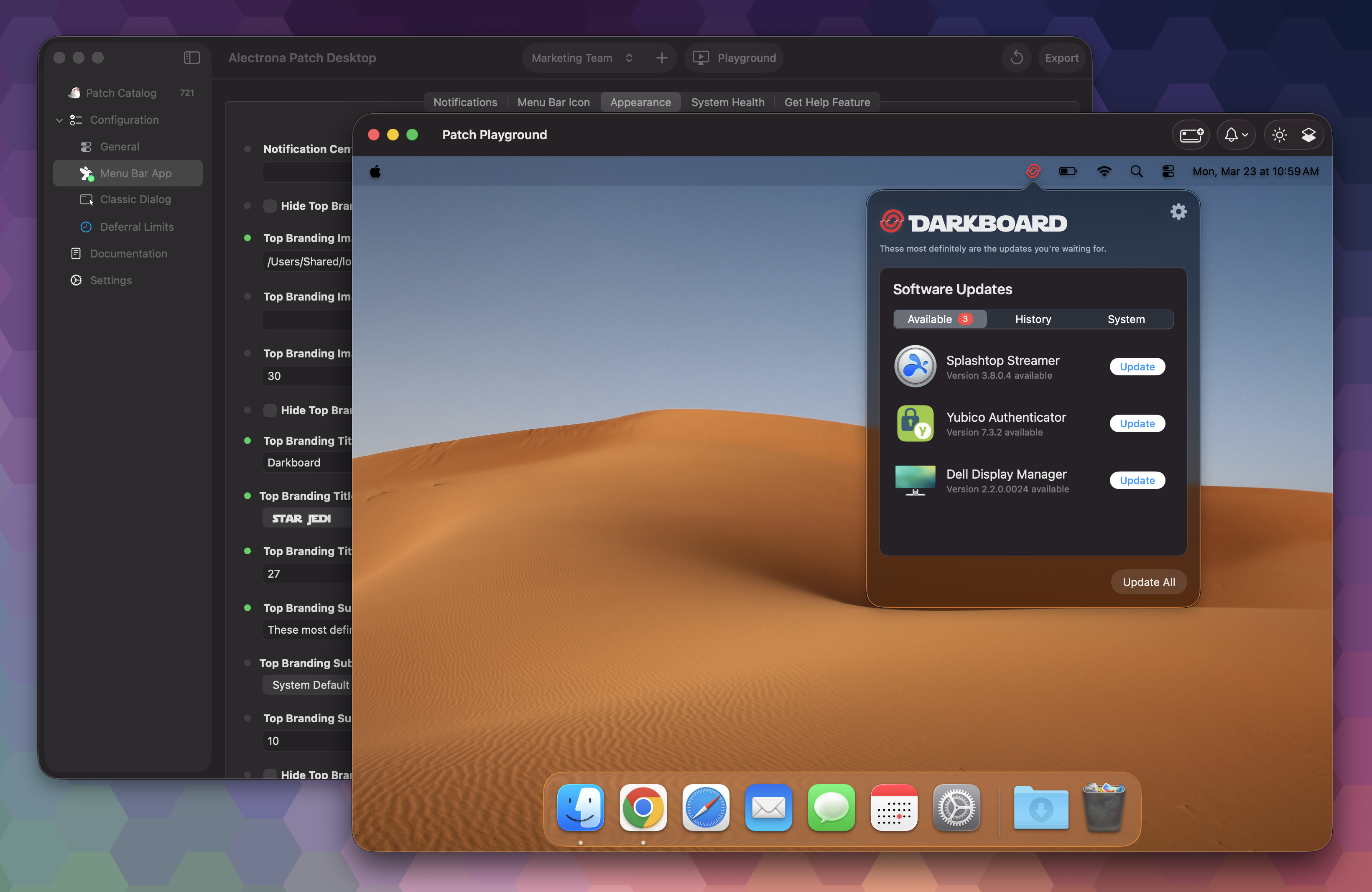
In Configuration > Menu Bar App, enable the Patch Menu Bar app and Notification Center alerts to provide users with unmatched balance between visibility and non-intrusiveness for patch notifications.
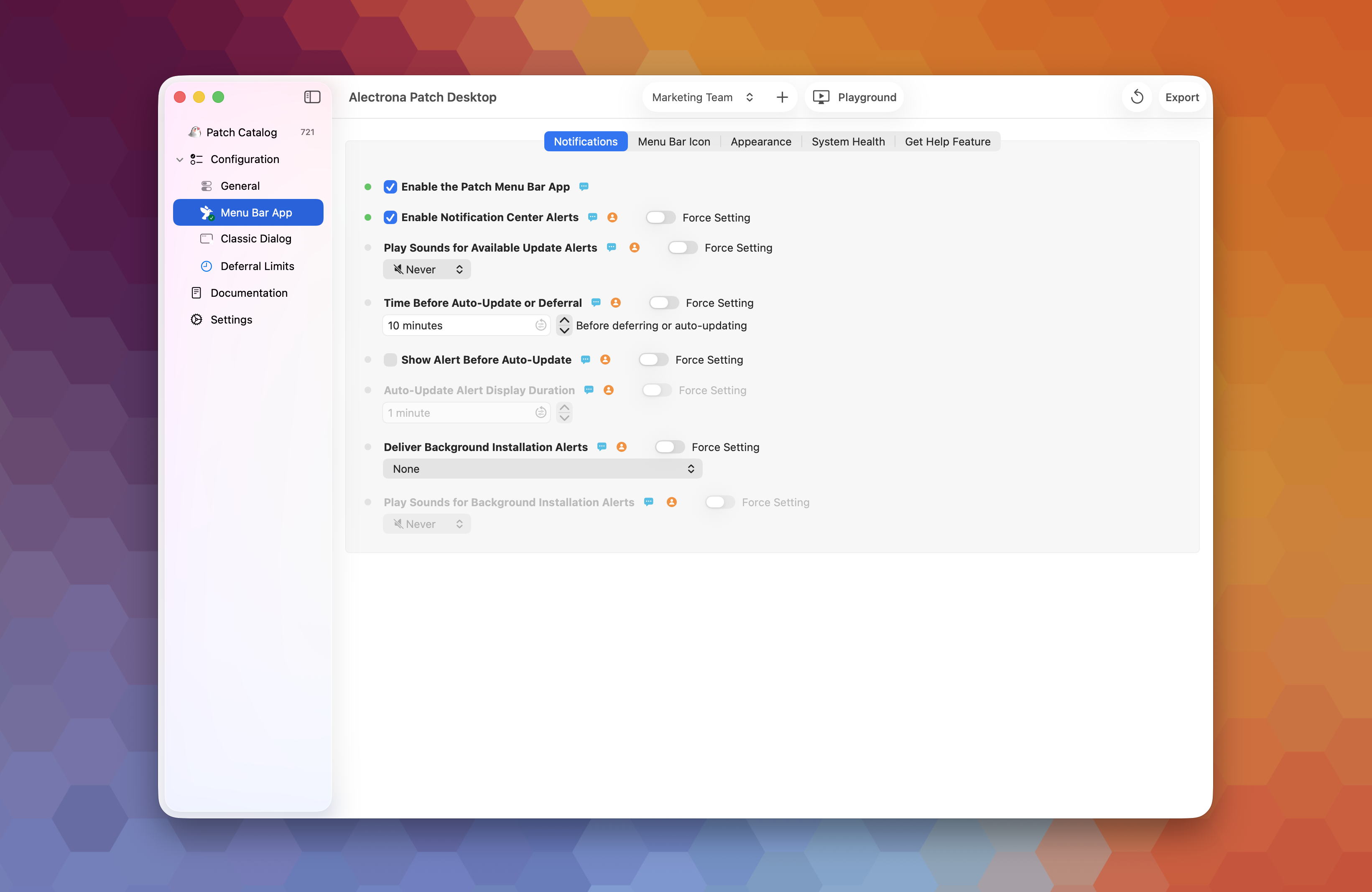
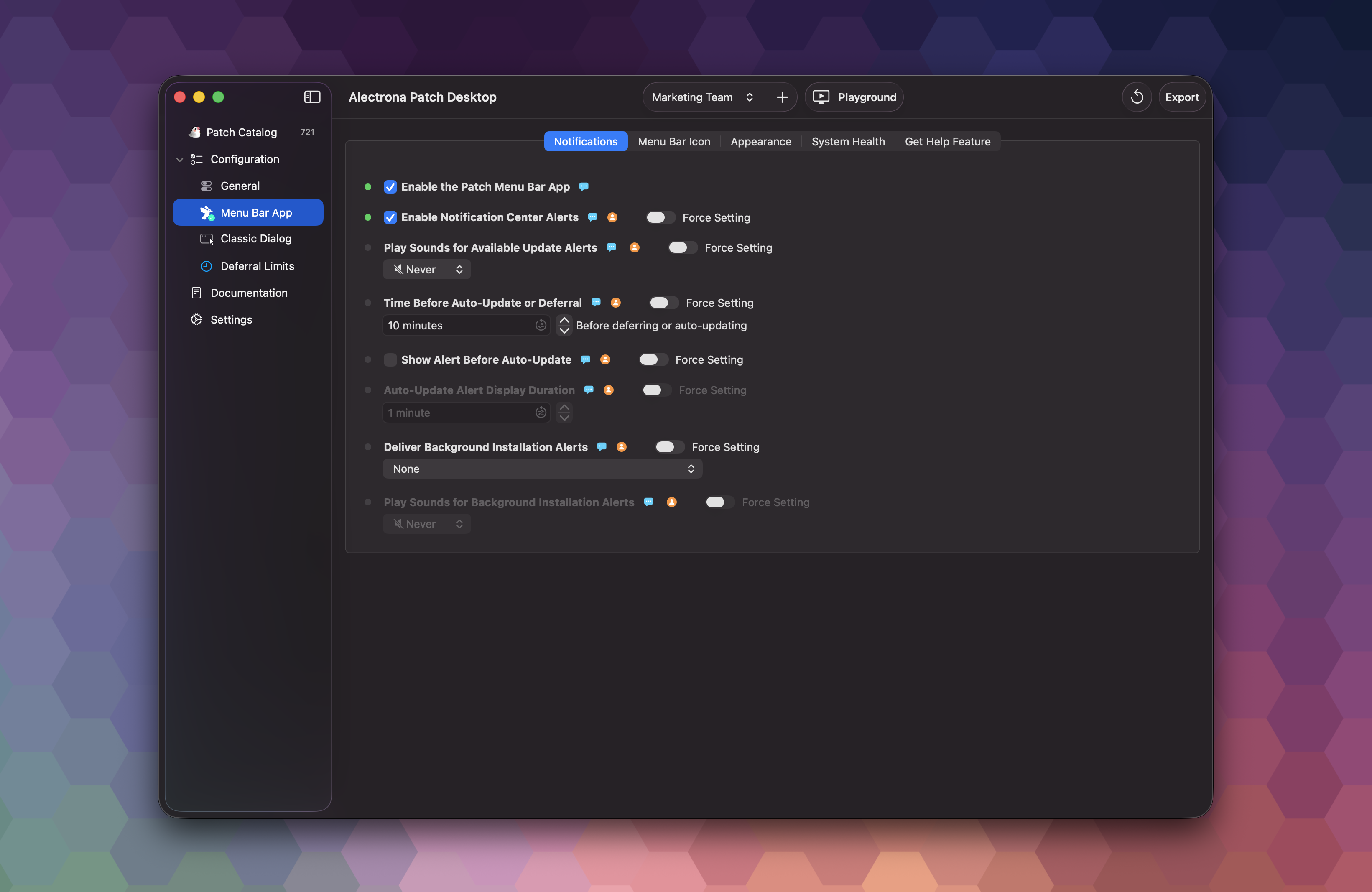
We recommend adding your own custom branding to the Menu Bar app and notifications by uploading your own icons and text preferences in the Menu Bar App settings.
Under Configuration > Deferral Limits, we recommend enabling a Global Deferral Limit as well as any individual deferral limits to ensure managed apps are patched within a reasonable time.
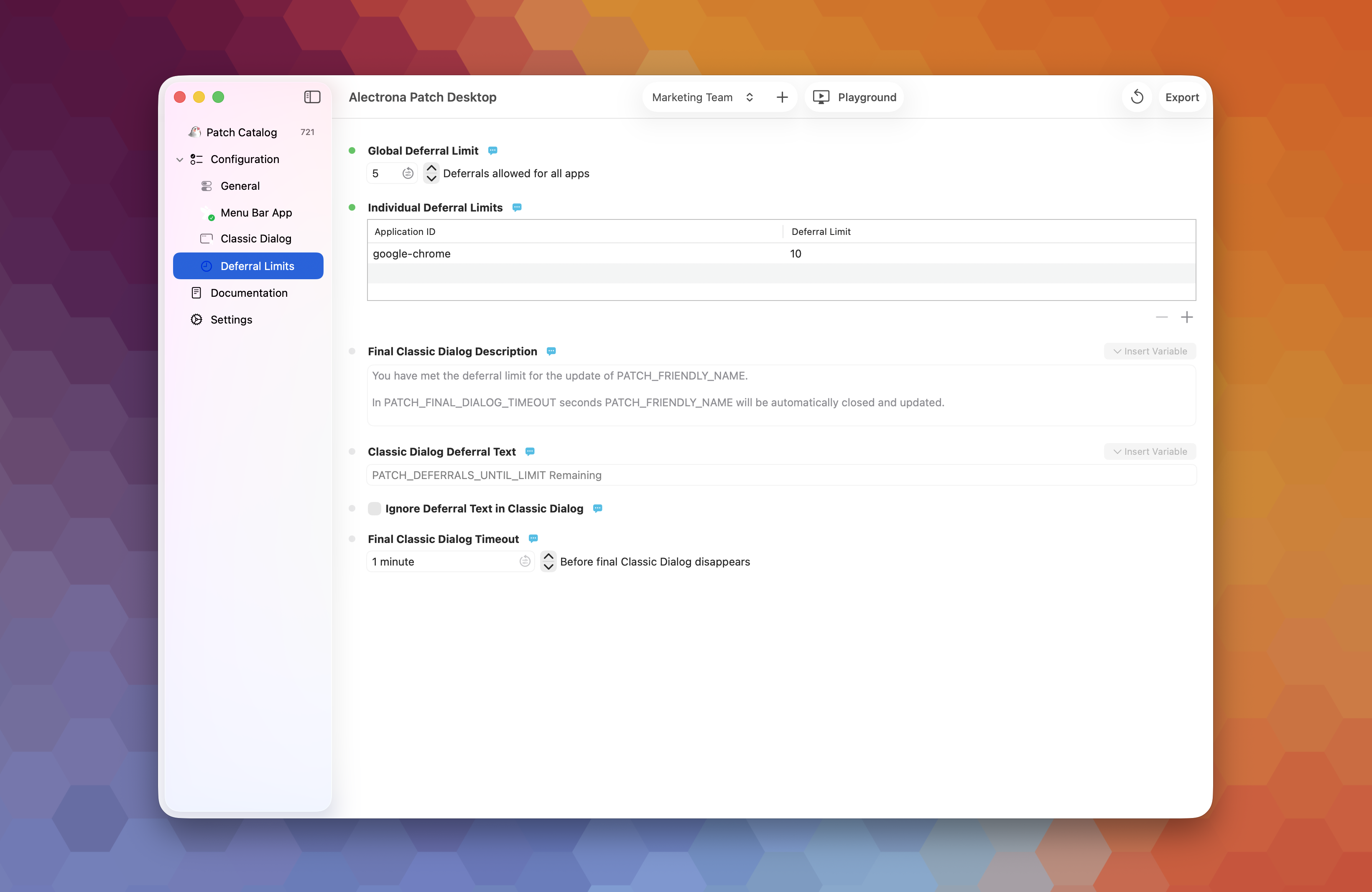
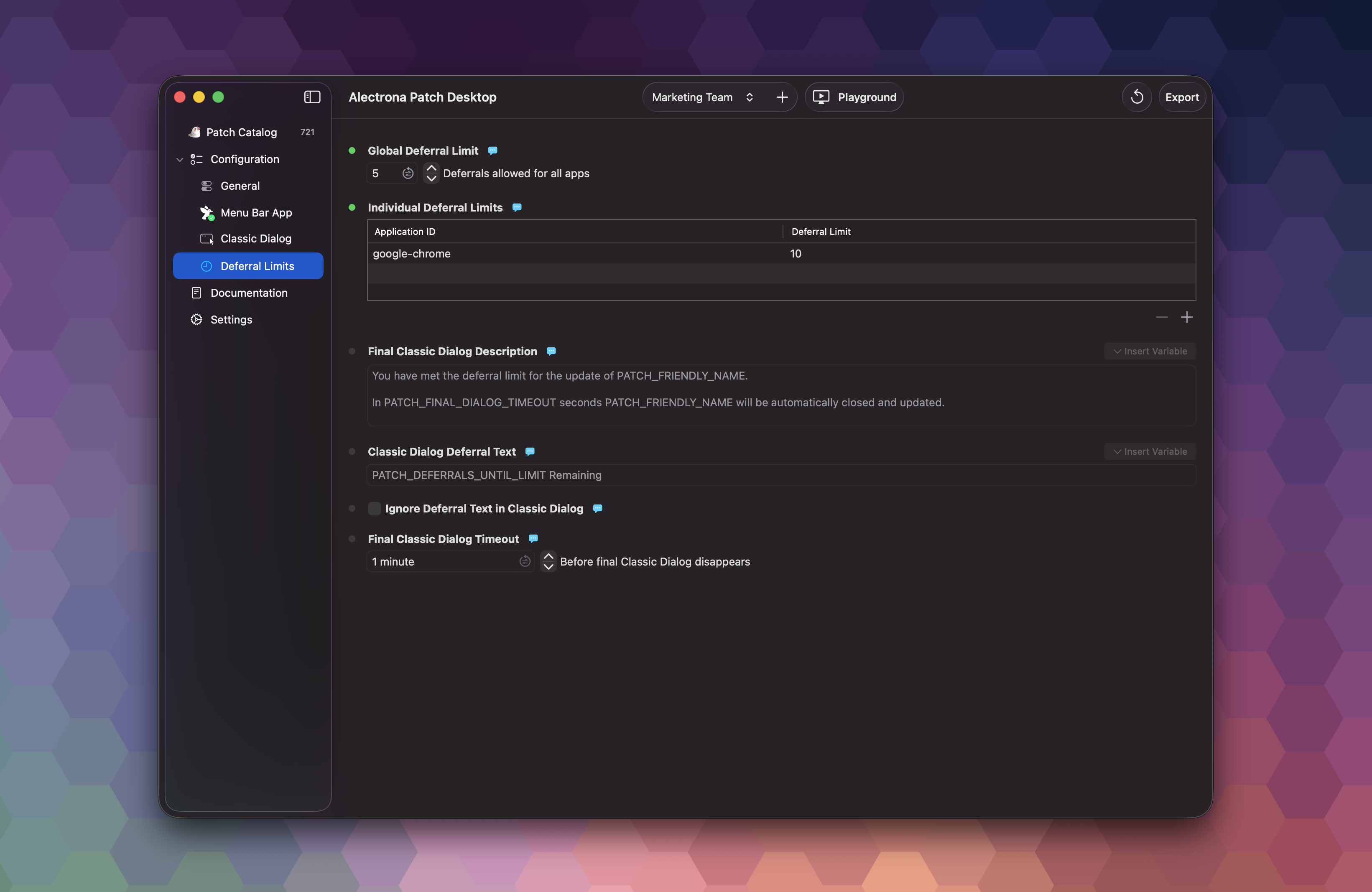
Preview your configuration settings in the Patch Playground to see exactly how your users will experience patch notifications and interactions. This is a great way to ensure your settings are configured as desired before deploying to your environment.
Choose Your Apps
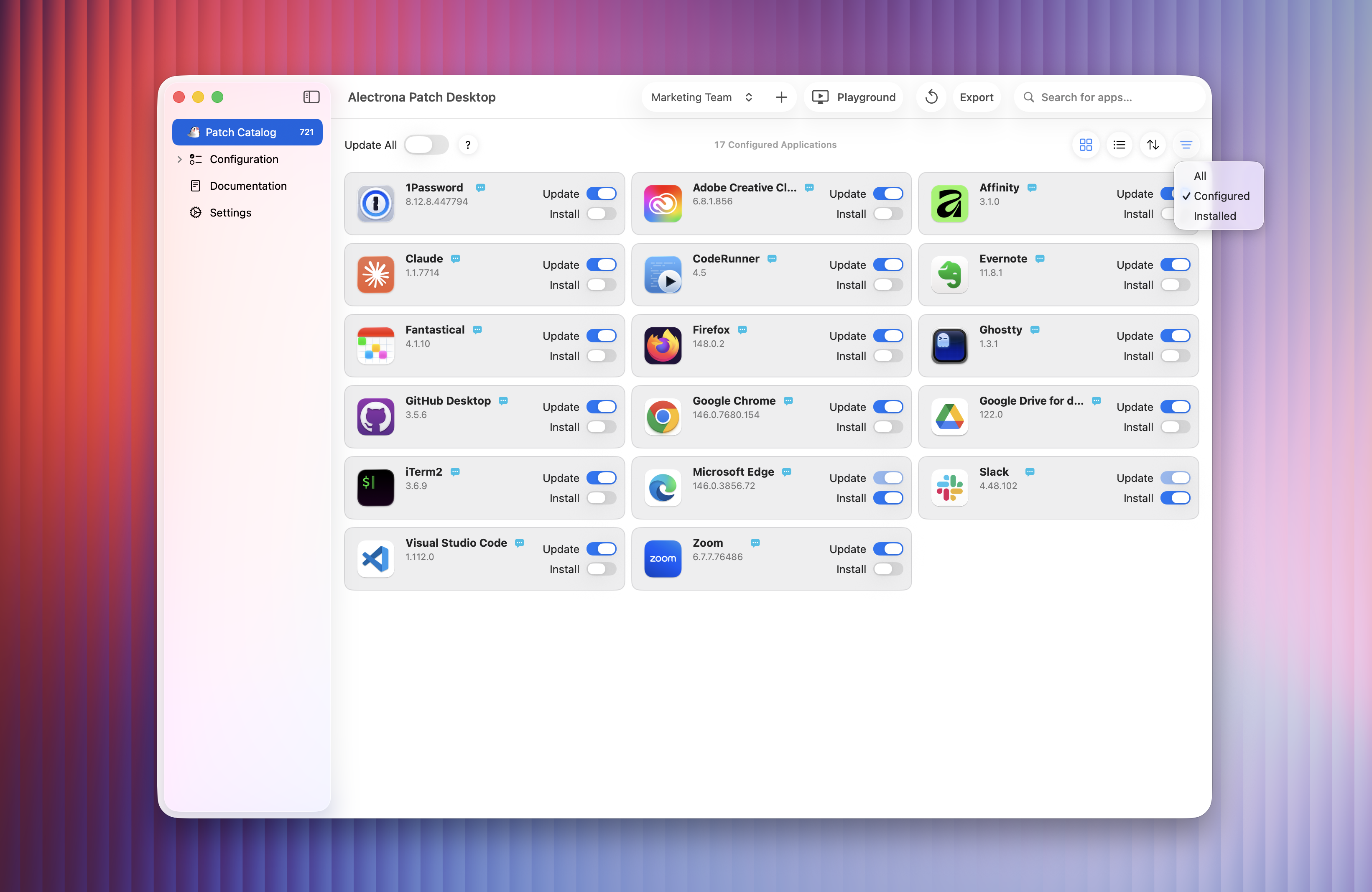
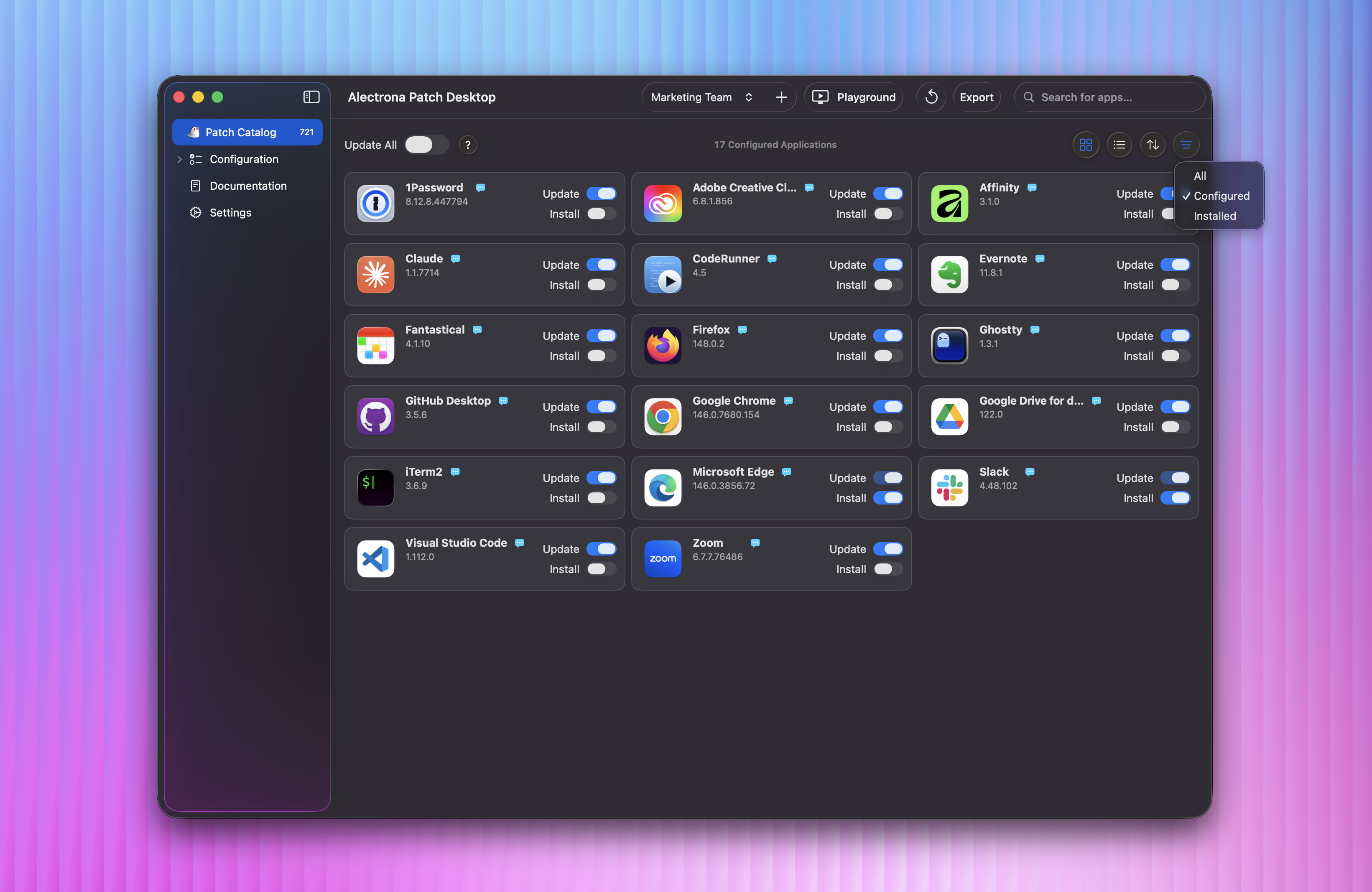
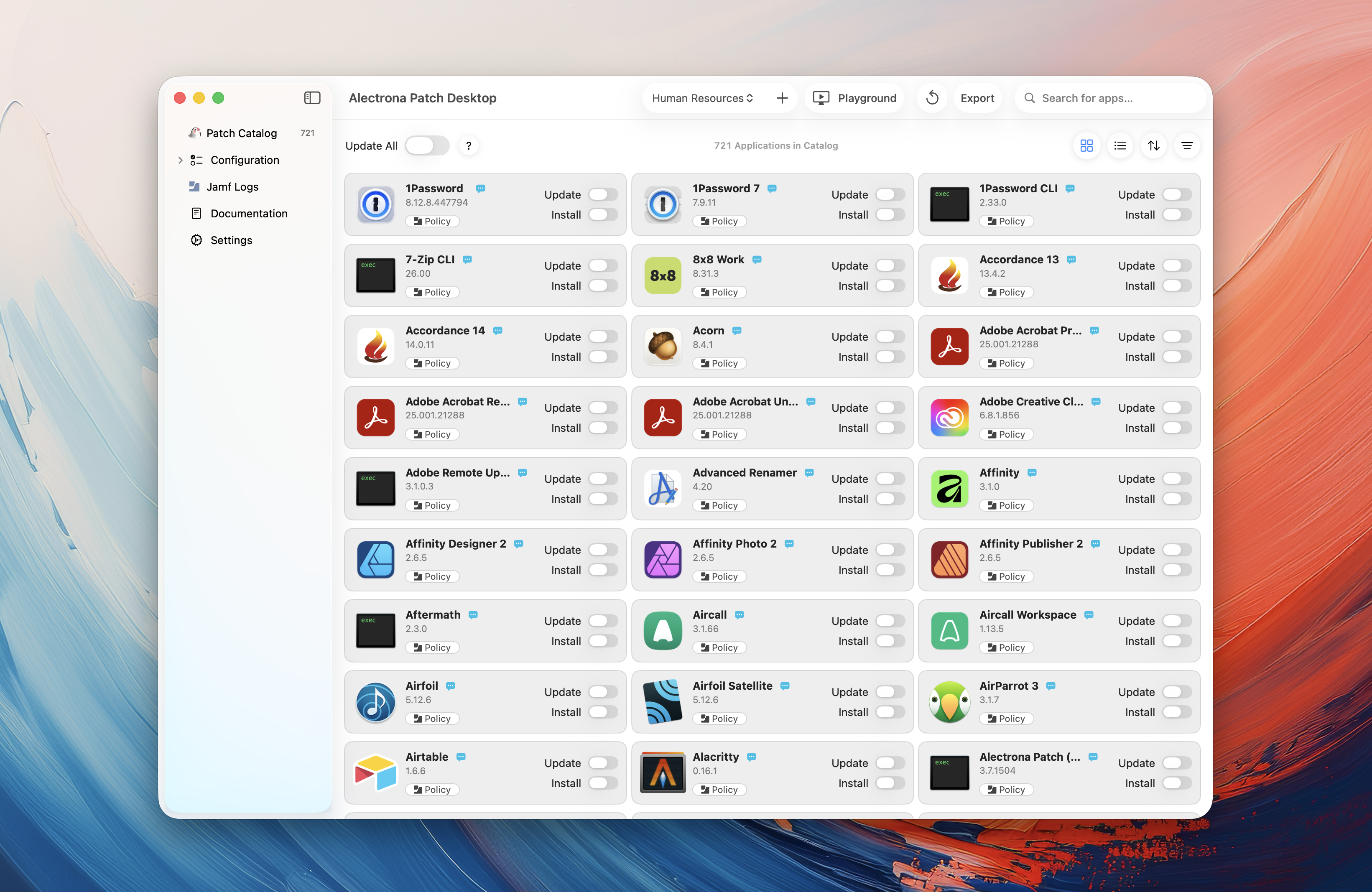
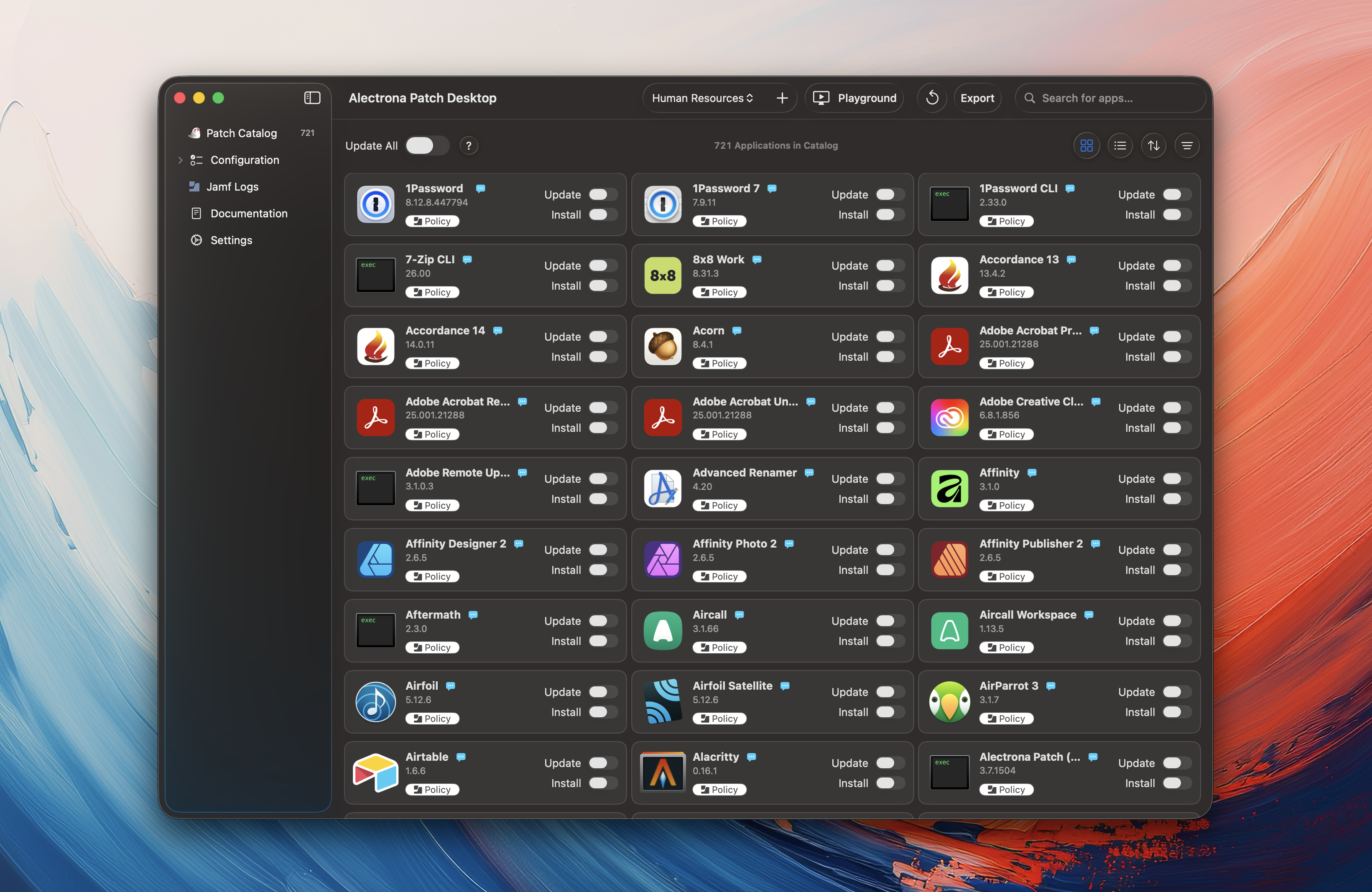
With your desired configuration settings in place, navigate to the Patch Catalog inside Patch Desktop and choose the apps you would like to manage. We recommend that you toggle the Update functionality for any apps deployed in your environment. This ensures those apps are kept up to date if they are installed on any endpoints.
Optionally, you can enable Update All which will configure Alectrona Patch to automatically update every third-party app installed on your Macs that exist in the Patch Catalog. For any software titles you prefer to not update, toggle the Update button off for that app which will exclude it from receiving updates from Alectrona Patch.
You can use the Reporting functionality of the Patch agent, along with a Jamf Pro Extension Attribute, to generate a list of all installed apps on your deployed Macs that exist in the Patch Catalog.
Step 4 - Upload Configuration Profile to Jamf Pro
- Export Profile
- Review Payloads
- Set Upload Options
- Open in Jamf Pro
Click Export in the top right of Patch Desktop or choose File > Export mobileconfig to export your configuration profile.
Review the included payloads, then click Upload to MDM.
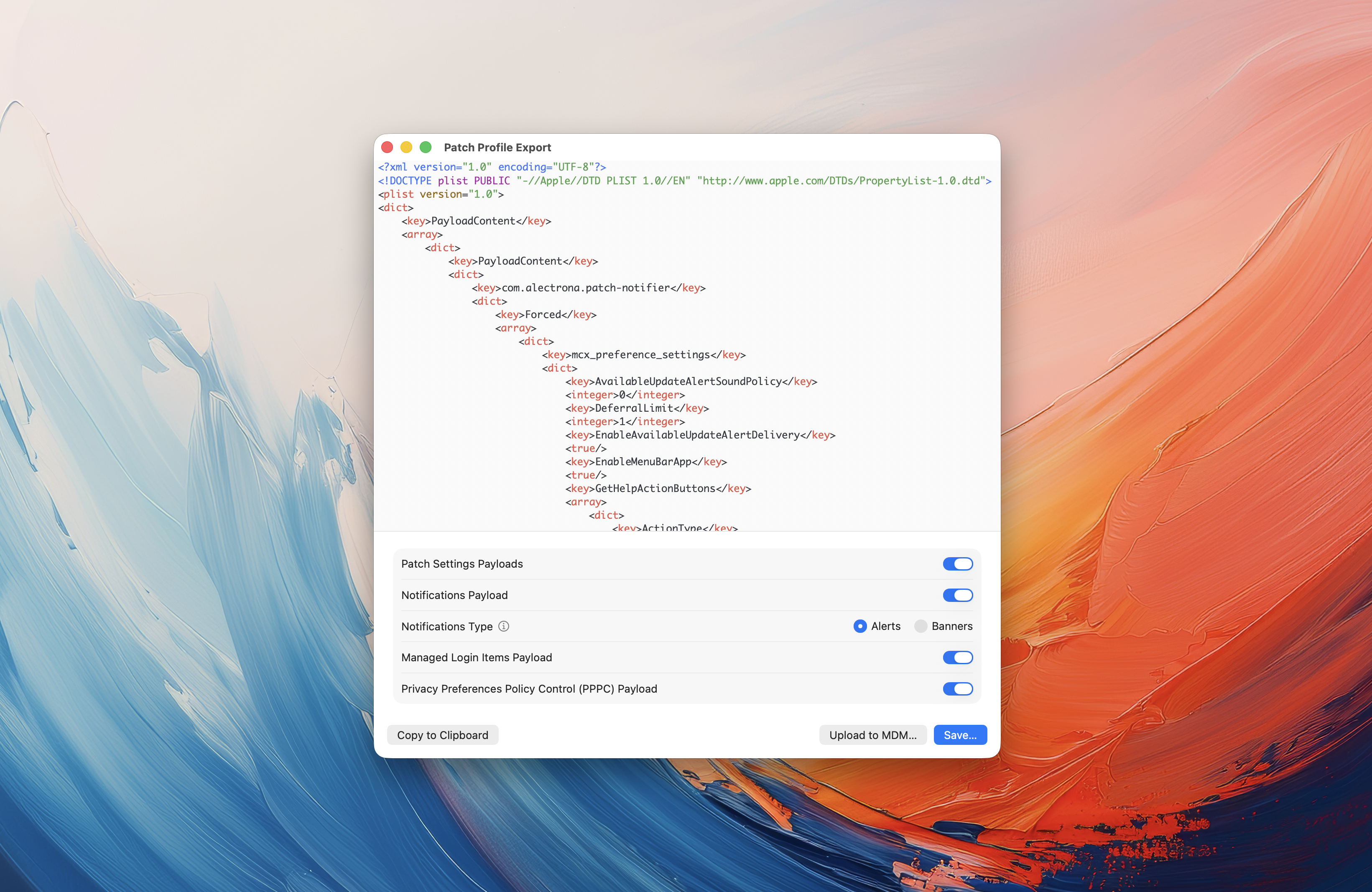
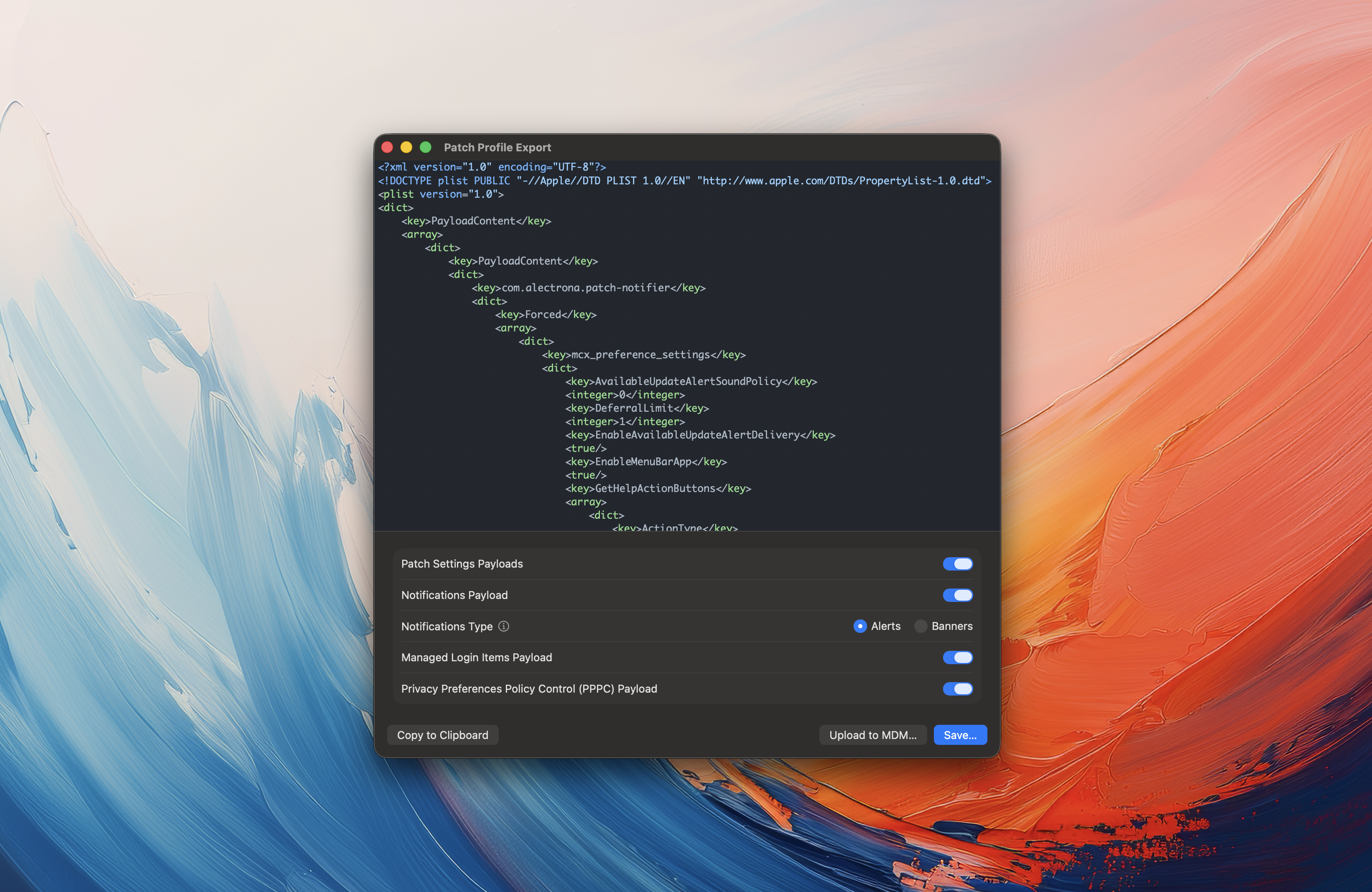
All payloads are enabled by default. Toggle any off only if you plan to manage them in separate configuration profiles.
Review the name and description, select a category and confirm scope, then click Upload.
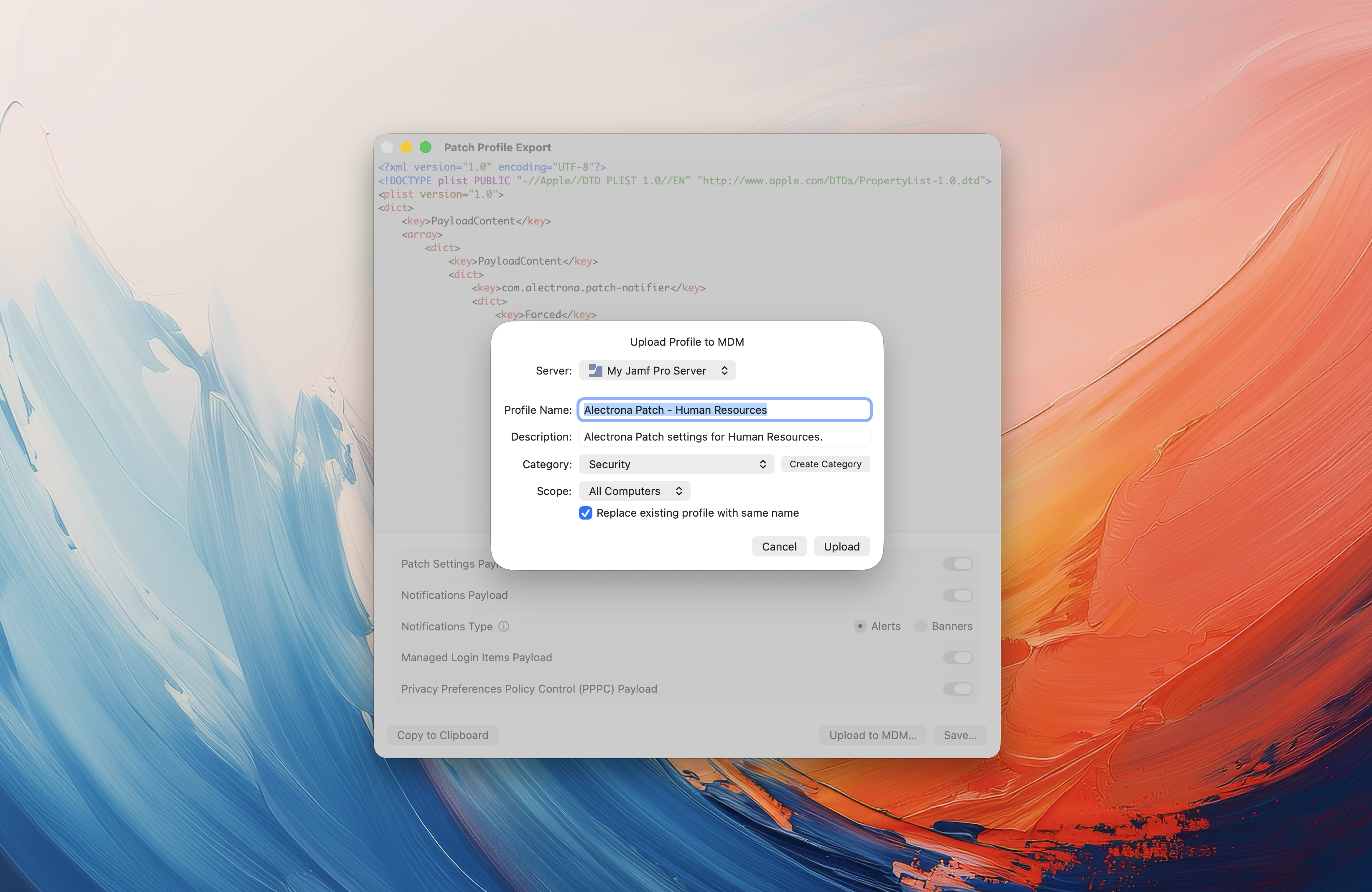
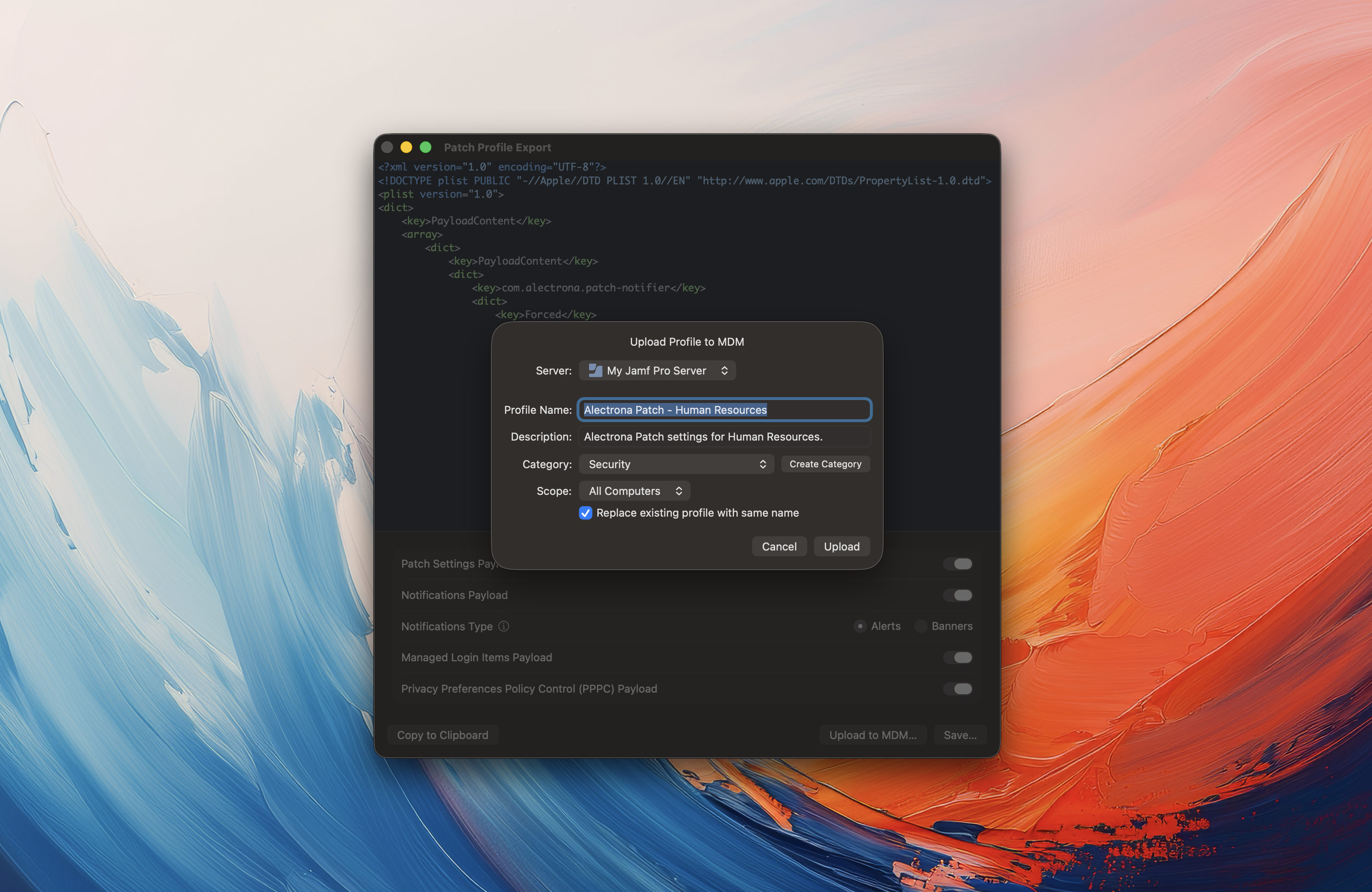
You can choose to replace an existing Alectrona Patch configuration profile with the same name during upload.
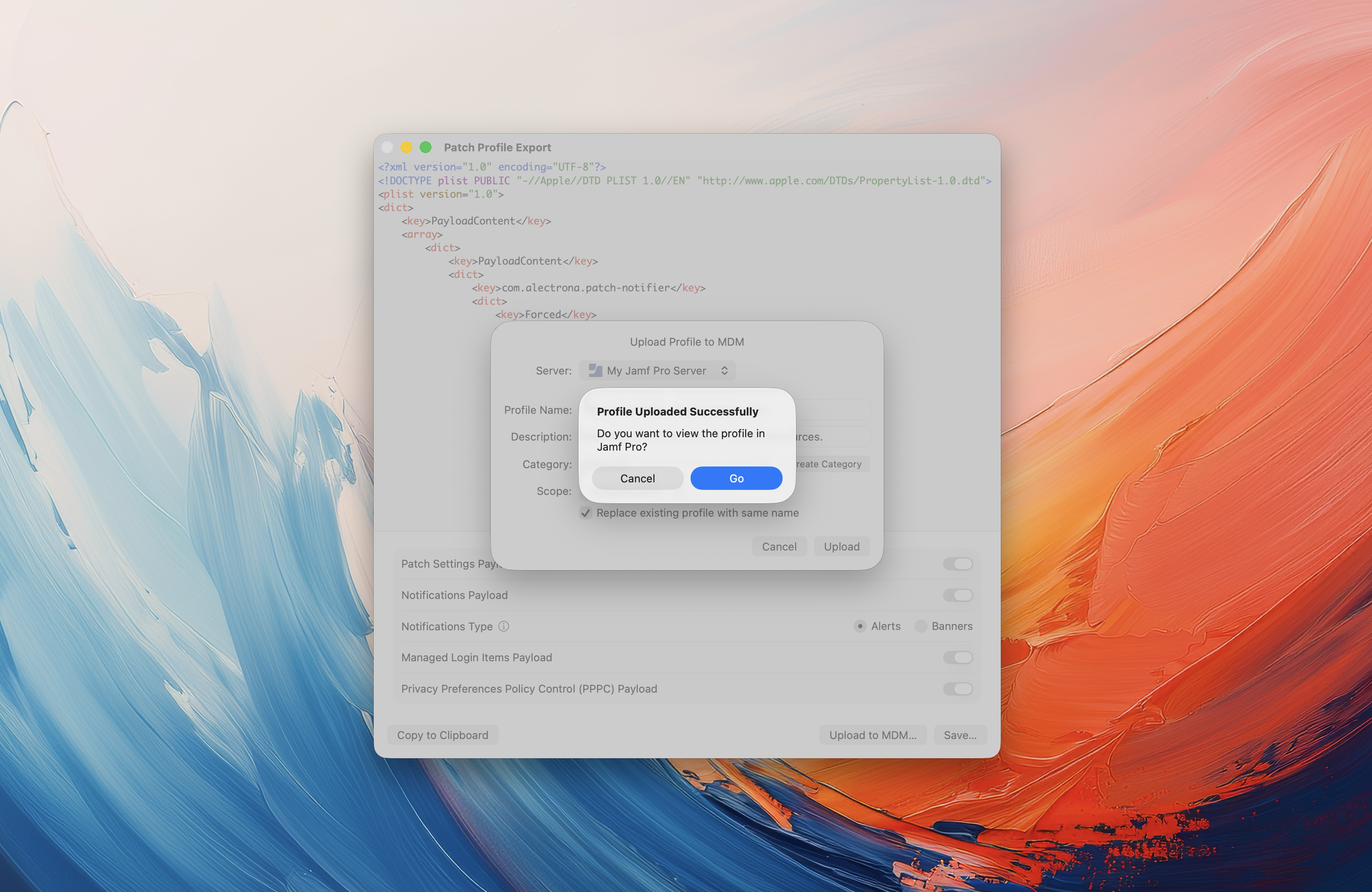
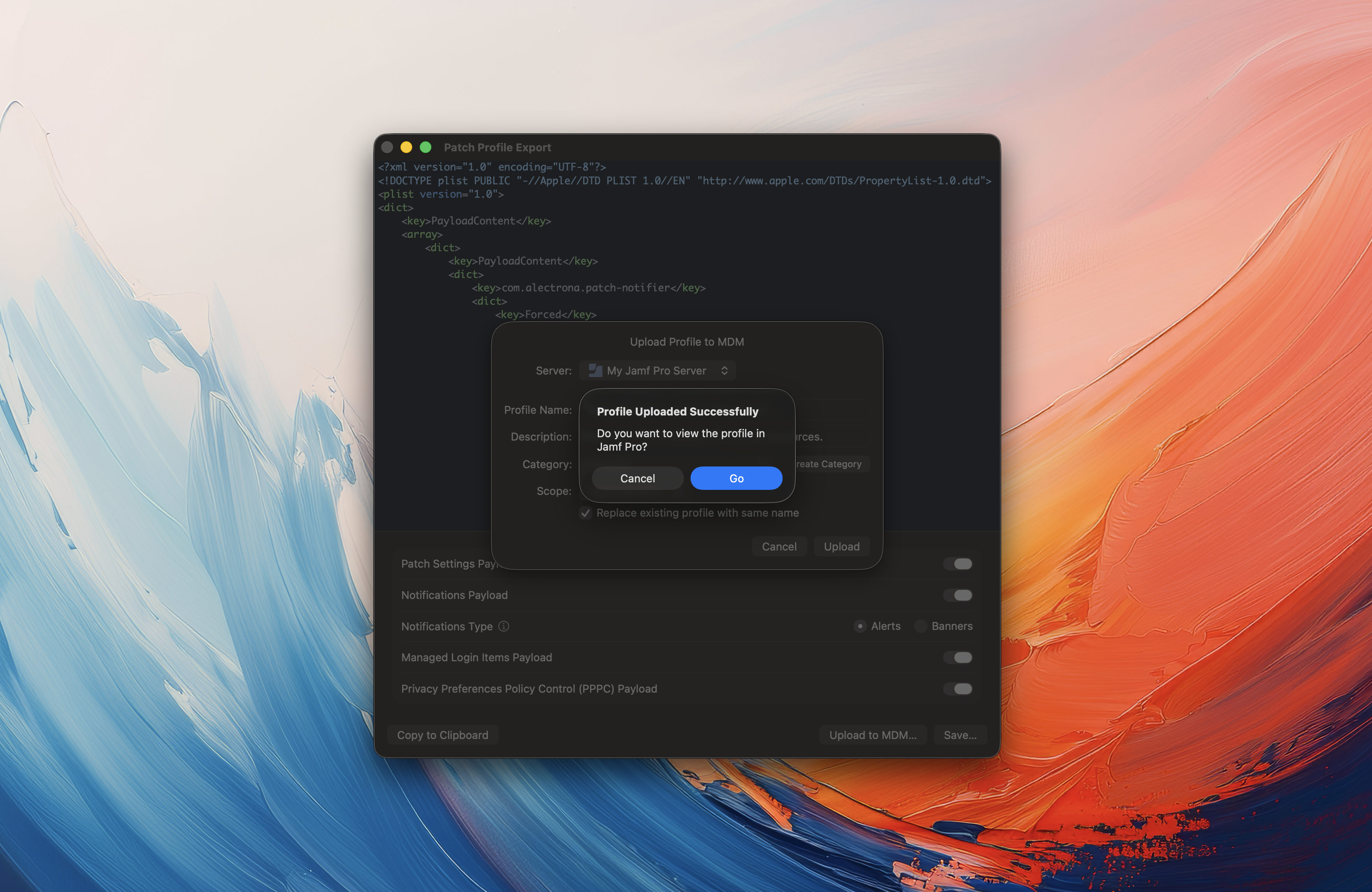
Once uploaded, you can immediately open the profile in Jamf Pro.
Required Permissions
A Privacy Preferences Policy Control (PPPC) configuration profile (see below) is required to ensure Alectrona Patch functions properly.
Additionally, if you enable the Patch Menu Bar app, deploy a profile that configures Notification Center Alerts or Banners for Patch. Example profiles for persistent alerts or temporary banners are provided below.
- Alectrona Patch PPPC Profile - Updated Feb. 2026
- Enable Notification Center Alerts - Enable persistent notifications (recommended)
- Enable Notification Center Banners - Enable temporary notifications
- Managed Login Items Profile - Prevents users from disabling background items for Patch (recommended)
Note: Banners disappear automatically, while alerts remain on screen until dismissed. Choose the profile that matches your desired behavior.
Patch Desktop 2.1+ can automatically include these required payloads in the generated Patch Profile, eliminating the need to deploy the profiles separately.
Step 5 - Deploy Alectrona Patch 🎉
- Scripted Install (Recommended)
- Package Installation
- Download and save our Installation script
- Inside Jamf Pro, navigate to Settings > Scripts and click +New
- In General, configure a name for the script (i.e. Install Alectrona Patch) and set a category. On the Script tab, drag the downloaded script into the Script pane, and choose Save
- Navigate to Computers > Policies > +New
- Create the new policy with the below settings:
- Display Name: Install Alectrona Patch
- Trigger: Recurring Check-in
- Execution Frequency: Once per computer
- Choose Scripts > Configure and select the Install Alectrona Patch script
- Under Scope, target All Computers (or a desired Smart Computer group)
- Download the Alectrona Patch package from your welcome email
- Inside Jamf Pro, navigate to Settings > Packages > +New
- Click Choose File and select the downloaded package
- Confirm the desired name and category, and choose Save to upload the package
- Navigate to Computers > Policies > +New
- Create the new policy with the below settings:
- Display Name: Install Alectrona Patch
- Trigger: Recurring Check-in
- Execution Frequency: Once per computer
- Choose Packages > Configure and select the uploaded Alectrona Patch package
- Under Scope, target All Computers (or a desired Smart Computer group)